
Feedspace Home Dashboard

How Do I Change the Star Rating Color on My Horizontal Scroll Widget in Feedspace?

Last updated on June 12, 2026

Overview

The Horizontal Scroll widget displays your review cards in a continuously looping ticker that moves across the page, keeping visitor attention with smooth, uninterrupted motion. Because every card is visible in quick succession, the star ratings are one of the first visual elements a viewer registers as the ticker scrolls by.

Feedspace gives you two color controls specifically for those star icons: Star Rating Color sets the fill color of the star shapes themselves, and Star Rating Border Color sets the outline drawn around each star. Together, these let you align the star appearance with your brand palette, making the scrolling ticker feel like a natural part of your website rather than a generic embedded widget.

How to Change the Star Rating Color for Your Horizontal Scroll Widget

Step 1: Open the Widgets Section

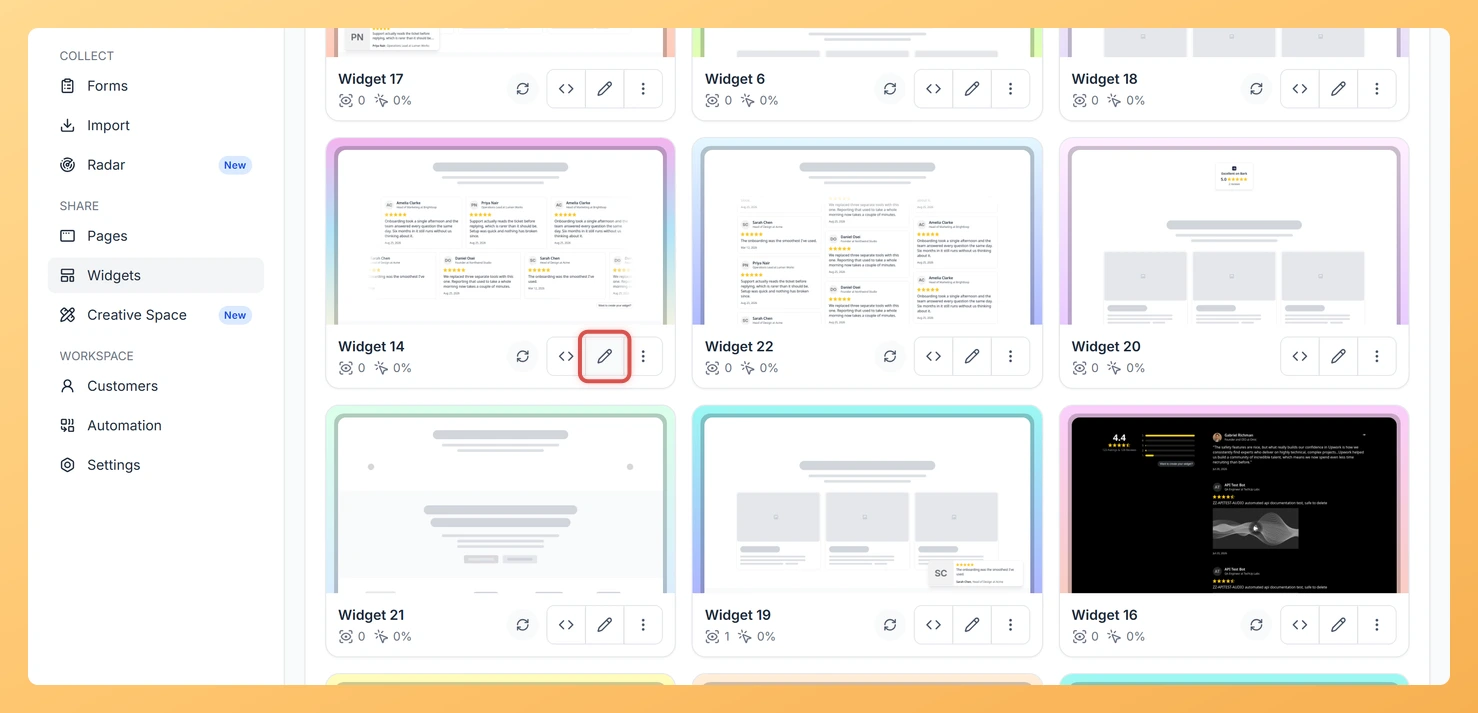
Log in to your Feedspace account. In the left sidebar, click Widgets to open the list of all widgets you have created.

Step 2: Edit Your Horizontal Scroll Widget

Find the Horizontal Scroll widget you want to update. Click the Edit button (pencil icon) next to it to open the widget editor.

Step 3: Go to the Design Tab

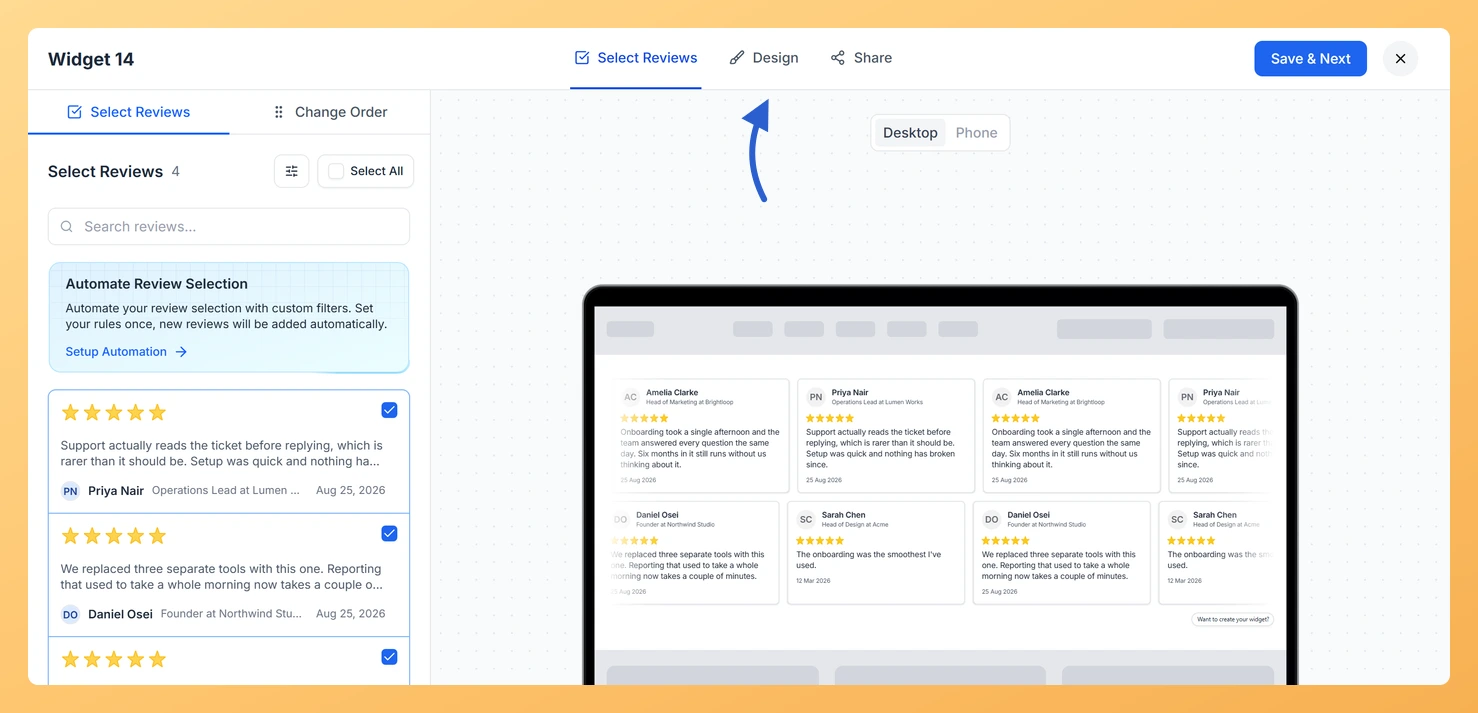
Inside the widget editor, click the Design tab at the top of the panel. This tab contains all visual customization options for your Horizontal Scroll widget, including layout, colors, and typography settings.

Step 4: Locate the Widget Color Customization Section

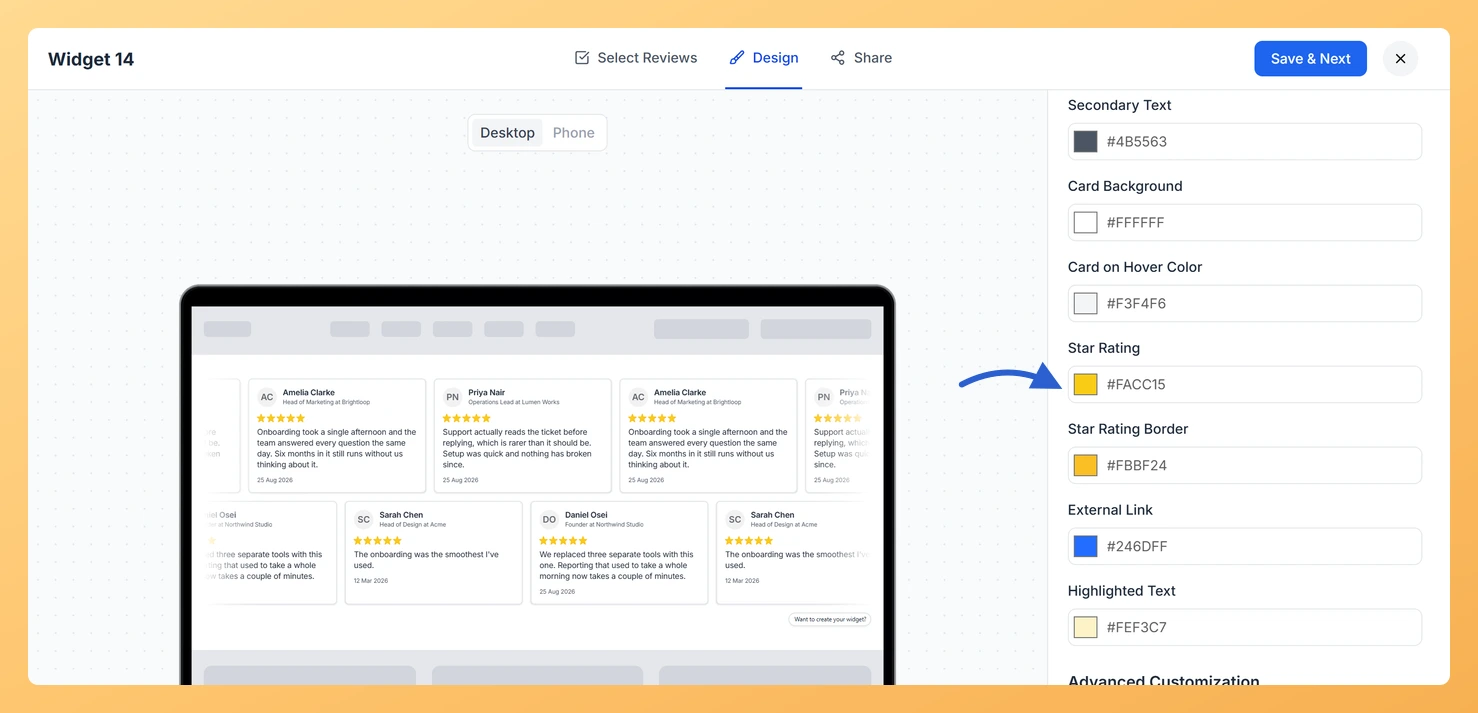
Scroll down within the Design tab until you reach the Widget Color Customization section. This section groups all color pickers for the widget’s visual elements together in one place.

Step 5: Set the Star Rating Color

Click the color swatch next to Star Rating Color. A color picker will open. Enter a hex code, use the hue slider, or click a saved color to set the fill color of the star icons that appear on every review card in the scrolling ticker. Click anywhere outside the picker to confirm your selection.

Step 6: Set the Star Rating Border Color

Click the color swatch next to Star Rating Border Color. Choose a color for the outline drawn around each star icon. Setting this to a slightly darker or contrasting shade of your fill color gives the stars definition, which is especially useful against light card backgrounds in the scrolling layout.

Step 7: Save and Preview

Click Save to apply your changes. Use the live preview panel to confirm that the star icons in the scrolling ticker now display the fill and border colors you selected. The update takes effect immediately on any page where the widget is already embedded.

What You Can Do Next

  • Show or hide star ratings entirely on the Horizontal Scroll widget to control whether ratings appear in the ticker at all.
  • Explore other color options in the Widget Color Customization section, such as card background and text colors, to create a fully cohesive scrolling ticker design.
  • Copy the embed code for your updated Horizontal Scroll widget and paste it into your website to publish the new star rating colors live.
  • Create a second Horizontal Scroll widget with a different color scheme to A/B test which star rating style drives more engagement on your testimonials page.

You might also find helpful

How Do I Show or Hide Star Ratings on My Horizontal Scroll Widget in Feedspace?

Overview The Horizontal Scroll widget displays your review cards in a continuously looping ticker that moves across the page, giving visitors a dynamic, eye-catching stream of social proof. Because each card is compact and moves in sequence, every element on the card competes for limited visual space. The Show Review...

How to Create a Horizontal Scroll Widget in Feedspace

Overview The Horizontal Scroll widget in Feedspace showcases your reviews in a smooth side-by-side scrolling motion. It is perfect for sections where you want continuous movement and visual engagement, such as website headers, testimonial rows, or landing pages. How to Access Step 1 – Log in to Feedspace Go to...

How Do I Customize the Design of My Widget in Feedspace?

Overview Feedspace widgets come with a powerful Design tab that lets you tailor every visual aspect of your widget. From card colors and fonts to dark mode and call-to-action buttons, you can fully customize the look to match your website’s brand without writing any code. How to Customize the Widget...