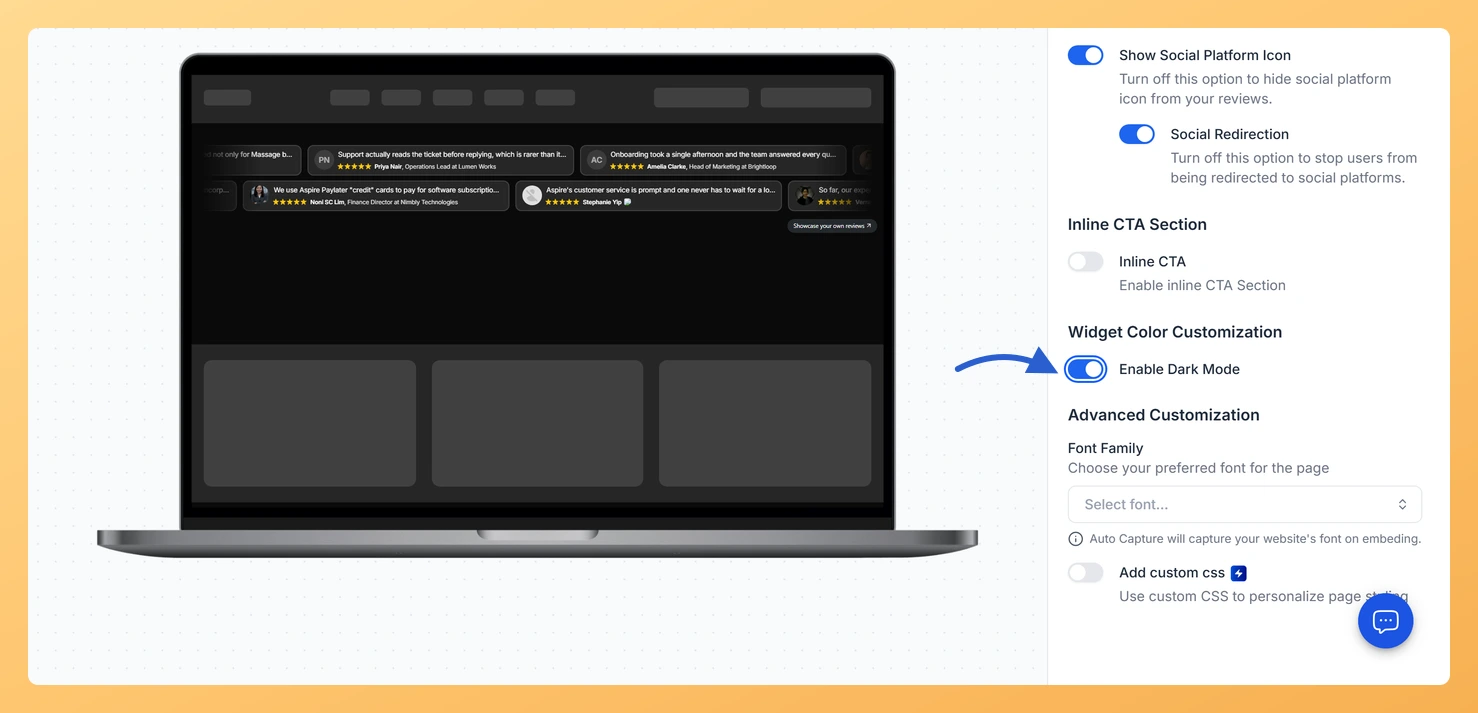
The Enable Dark Mode toggle switches a Strip Slider widget in Feedspace to a ready-made dark color scheme. The cards turn dark and the text turns light in one step, so you don’t have to set each color yourself.
It is the quick option when the strip goes on a dark part of your site, such as a black hero banner or a dark footer. Light cards there look like a stripe of white across the page; dark cards let the reviews sit inside the design.
Steps to turn on dark mode
Step 1: Click Widgets
In the sidebar of your Feedspace dashboard, click Widgets to list your widgets.
Step 2: Edit the Strip Slider you want to darken
Click the Edit (pencil) icon on its card. Once the editor loads, click the Design tab at the top.
Step 3: Turn on Enable Dark Mode
Scroll to Widget Color Customization. Enable Dark Mode is the first toggle in that section. Turn it on and the preview switches to dark cards.
Where did the border, shadow and color settings go?
Dark mode hides them. While Enable Dark Mode is on, Show Border, Show Shadow and the Custom Colors pickers are removed from the panel because dark mode supplies those colors itself. Turn it off and they come back.
Can I use dark mode but choose my own card color?
Not at the same time. For a dark look in your own shades, leave dark mode off and set a dark Card Background with light Primary Text and Secondary Text colors instead.
You might also find helpful
How Do I Change the Card Background Color on My Strip Slider Widget in Feedspace?
Overview Every review in a Strip Slider widget sits on its own small card. The Card Background picker in Feedspace sets the fill color of all those cards at once. White cards look right on a white page, but they can glare on a tinted section or disappear on a...
How to Create a Strip Slider Widget in Feedspace
Overview The Strip Slider widget in Feedspace allows you to showcase your reviews in a single, horizontally scrolling line: perfect for website headers, footers, or testimonial sections that need a minimalist design. You can adjust autoplay speed, borders, and colors to match your brand style. How to Access Step 1...
How Do I Customize the Design of My Widget in Feedspace?
Overview Feedspace widgets come with a powerful Design tab that lets you tailor every visual aspect of your widget. From card colors and fonts to dark mode and call-to-action buttons, you can fully customize the look to match your website’s brand without writing any code. How to Customize the Widget...