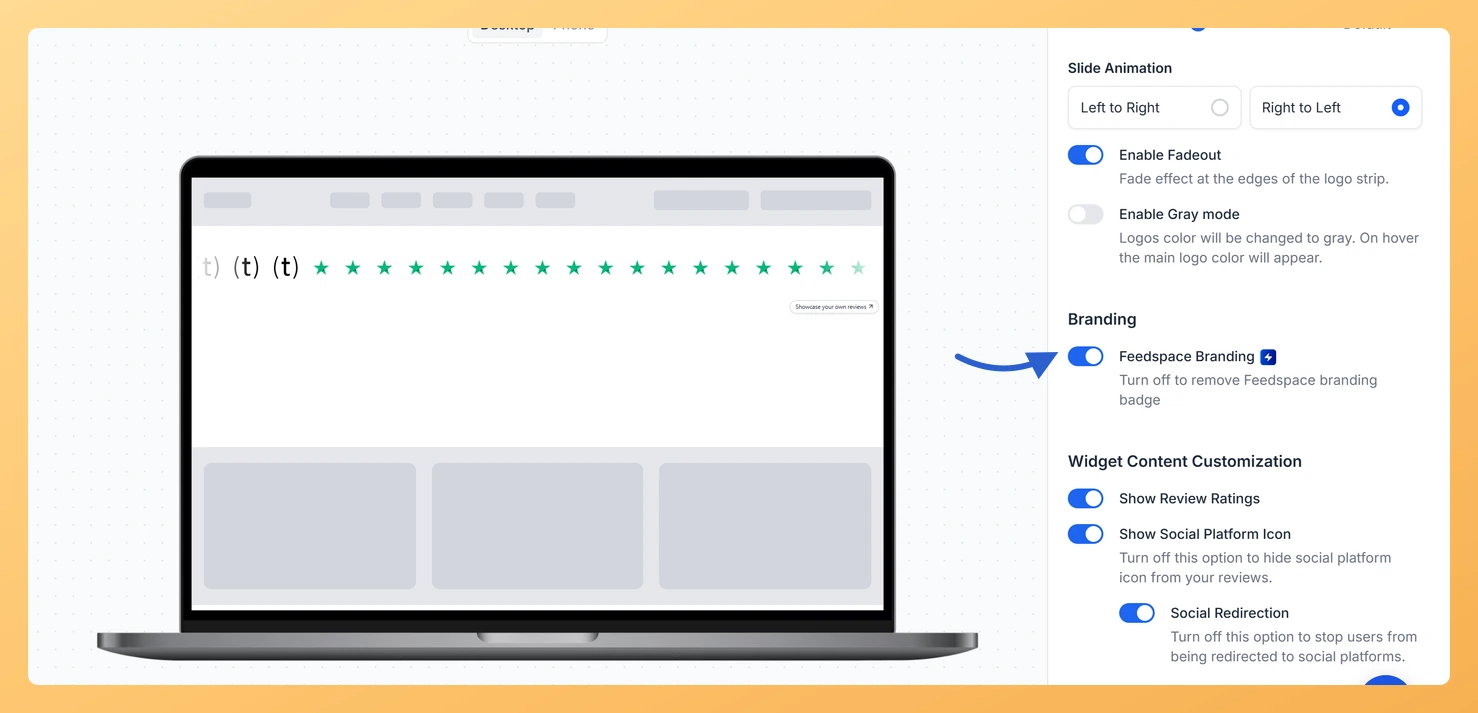
A Company Logo Slider widget from Feedspace shows a small Showcase your own reviews link under the logo strip. The Feedspace Branding toggle controls it. It starts switched on, and you turn it off to remove the link.
A logo strip is about your customers’ brands, so many teams prefer nothing else in it. Removing the link keeps the strip clean and keeps visitors on your page. Removing branding is part of Feedspace’s paid plans.
Steps to remove Feedspace branding
Step 1: Visit Widgets
Click Widgets in the sidebar of your dashboard.
Step 2: Edit the slider and open Design
Click the Edit (pencil) icon on your Company Logo Slider’s card, then the Design tab. Branding comes right after Layout Design.
Step 3: Turn off Feedspace Branding
Click the Feedspace Branding toggle to turn it off. The link disappears from under the strip in the preview. If your plan does not include this, an Upgrade Plan window opens instead.
Do I need to replace the embed code after turning branding off?
No. The widget loads from Feedspace every time the page opens, so the link disappears from your site once you save. Reload the page if you still see it.
You might also find helpful
How to Create a Company Logo Slider Widget in Feedspace
Overview Feedspace’s Company Logo Slider widget displays your clients’ or partners’ logos in a smooth, continuously scrolling strip. It’s the ideal “as seen on” or “trusted by” social proof bar for your homepage or landing page: no review text needed, just recognizable brand logos. Step 1: Log in to Feedspace...
How Do I Customize the Design of My Widget in Feedspace?
Overview Feedspace widgets come with a powerful Design tab that lets you tailor every visual aspect of your widget. From card colors and fonts to dark mode and call-to-action buttons, you can fully customize the look to match your website’s brand without writing any code. How to Customize the Widget...
How Do I Enable Grayscale Mode on My Company Logo Slider Widget in Feedspace?
Overview The Enable Gray mode toggle on a Company Logo Slider widget in Feedspace shows every logo in the strip in gray. When a visitor hovers over a logo, its original colors come back. Customer logos come in every color, and a row of bright, clashing brand colors can pull...