Feedspace Home Dashboard

How Do I Search and Filter Reviews for My Avatar Group Widget in Feedspace?

Last updated on June 12, 2026

Overview

The Avatar Group widget in Feedspace displays a compact cluster of reviewer profile photos, creating an instant visual impression of your customer community. Because the widget’s entire impact depends on showing real faces, the quality of the reviews you select matters more here than in any other widget type.

The Select Reviews tab inside the Avatar Group widget editor includes a search input and a filter panel that let you narrow your full review list down to exactly the right candidates before you start selecting. This is especially useful when you want to prioritise reviews imported from platforms like Google or Trustpilot, where reviewers typically have real profile pictures attached, giving your Avatar Group cluster a polished and authentic look.

How to Search and Filter Reviews for Your Avatar Group Widget

Step 1: Open the Avatar Group Widget Editor

Log in to your Feedspace account and navigate to the Widgets section from the main sidebar. Find the Avatar Group widget you want to update and click on it to open the widget editor.

Step 2: Go to the Select Reviews Tab

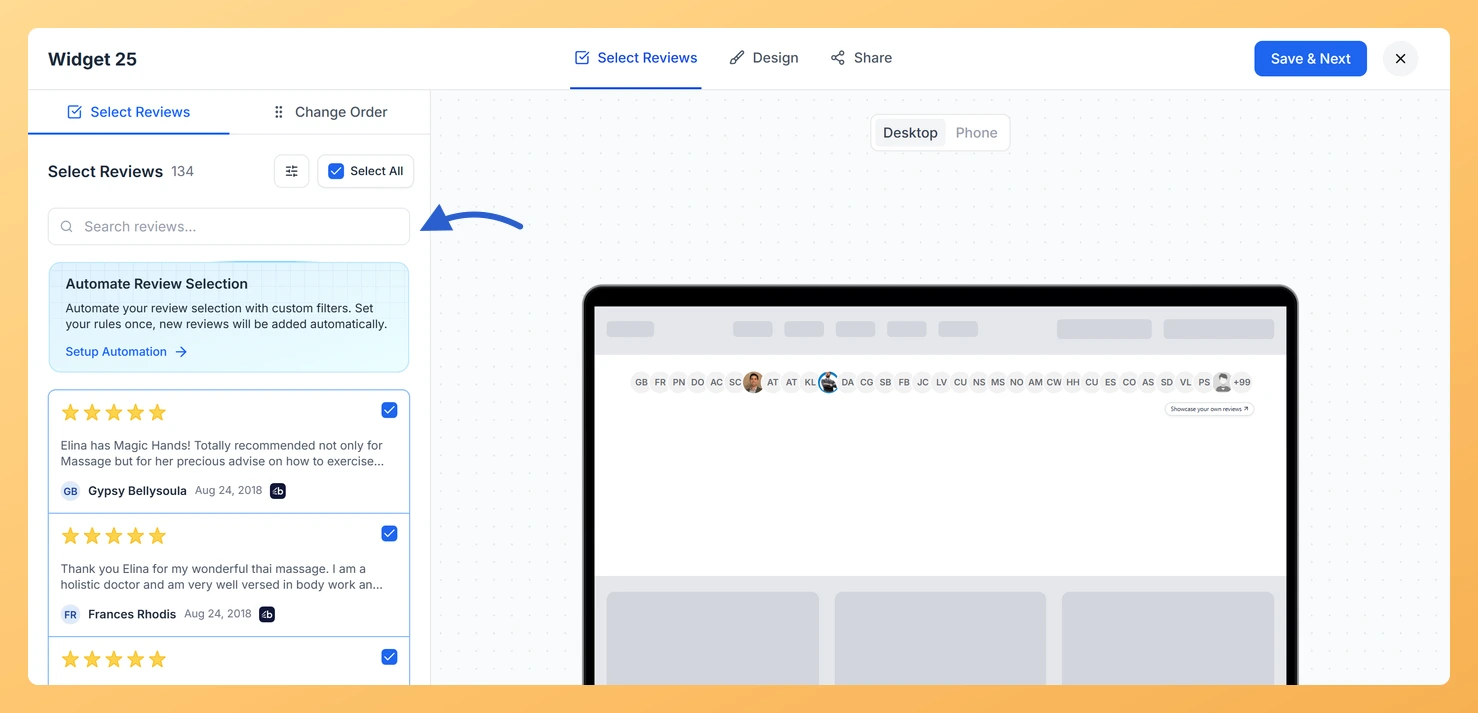
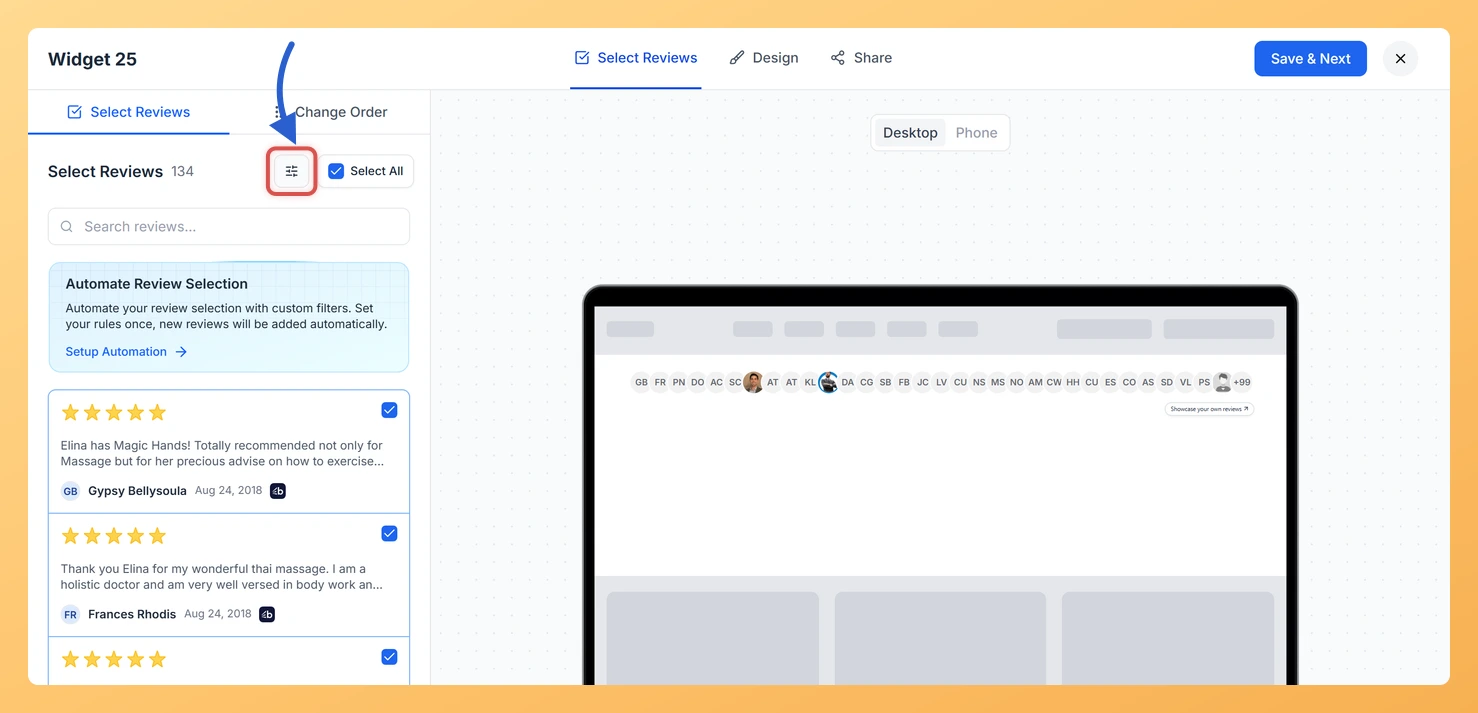
Inside the widget editor, click the Select Reviews tab. This tab lists all reviews in your Feedspace account that are available to include in the Avatar Group widget. The search input and the Filter button are both located at the top of this list.

Step 3: Search for Reviews by Keyword

Type any word into the search input at the top of the review list to instantly narrow the results. You can search by reviewer name, company name, or any keyword from the review text. The list updates in real time as you type, so you can quickly locate a specific reviewer or a review mentioning a particular product or feature.

Step 4: Open the Filter Panel

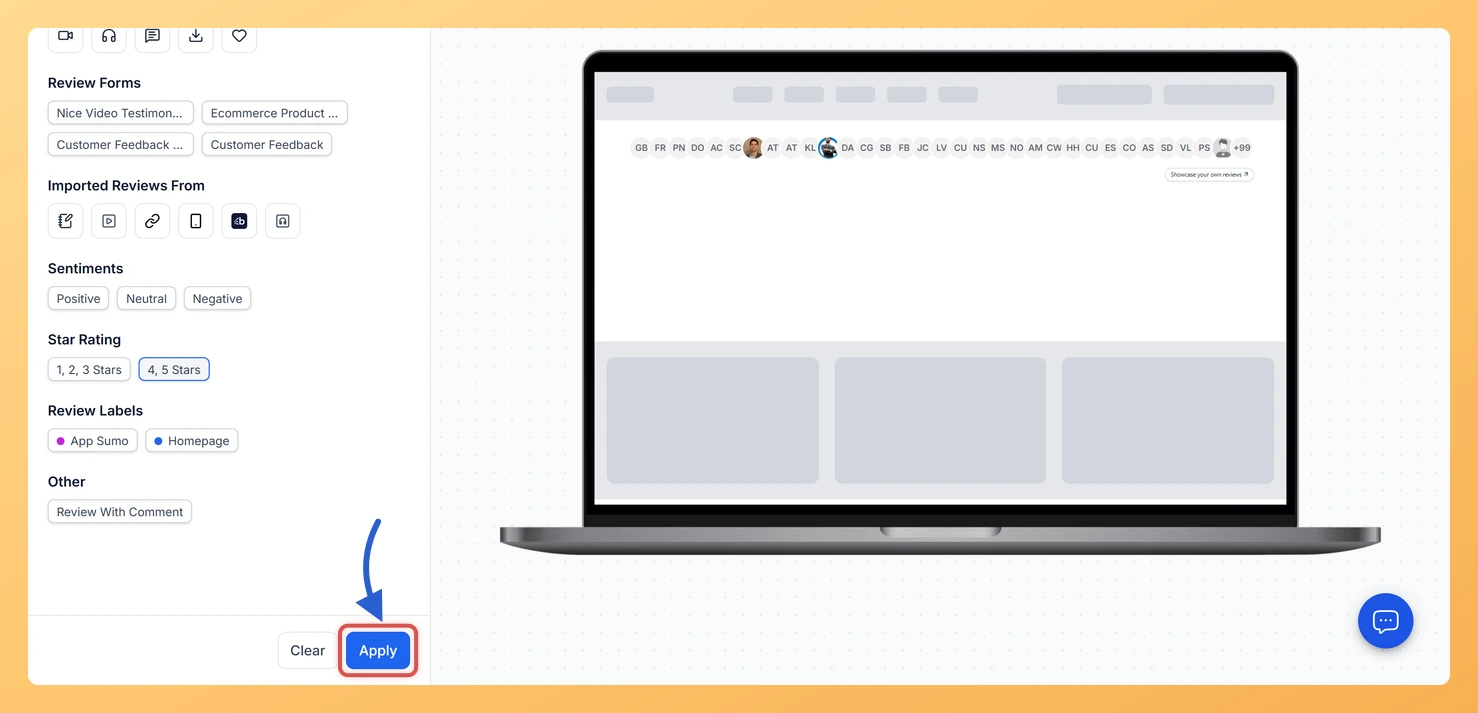
Click the Filter button next to the search input to open the filter panel. The panel gives you several independent filter options that you can combine to target exactly the reviews you want. You can apply as many filters as needed at the same time, and the review list updates immediately each time you make a selection.

Step 5: Filter by Review Type

Use the Review Type filter to show only reviews of a specific format, such as video, audio, text comments, highlighted text, images, or favourites. For the Avatar Group widget, text and imported reviews from platforms with real profile photos tend to produce the best results, as the widget is built around displaying authentic reviewer faces rather than media content.

Step 6: Filter by Source Platform

Use the Imported Sources filter to show only reviews that were imported from a specific external platform. Filtering for reviews from Google or Trustpilot is particularly effective when building an Avatar Group, because reviewers on those platforms typically have real profile pictures that make the avatar cluster look more compelling and trustworthy to visitors.

Step 7: Filter by Star Rating

Use the Star Ratings filter to limit the list to reviews with a specific rating range. Select 4 to 5 stars to ensure your Avatar Group cluster only shows reviewers who had a strongly positive experience, reinforcing trust for every visitor who sees the widget.

Step 8: Filter by Sentiment

Use the Sentiments filter to show reviews that have been classified as positive, neutral, or negative. Selecting positive sentiment is a quick way to surface the reviews most likely to represent happy customers, which is especially important for the Avatar Group widget where each avatar directly represents a person in your community.

Step 9: Filter by Labels

Use the Labels filter to show only reviews that have a specific label applied in your Reviews section. If you have already tagged your top reviews or sorted them by product line or customer segment, this filter lets you pull exactly that group into your Avatar Group widget without scrolling through your entire review library.

Step 10: Select Reviews and Save

With your search and filters applied, click the checkbox on each review card you want to include, or click Select All to add every review currently shown in the filtered list. Once your selection is complete, click Save to apply the changes. The Avatar Group widget will update to display avatars only from the reviews you selected.

What You Can Do Next

  • After filtering and selecting, proceed to the Customize tab to adjust avatar size, border color, and the number of avatars shown so the cluster fits your page layout.
  • Return to the Select Reviews tab regularly and apply the Imported Sources filter to add newly imported Google or Trustpilot reviews, keeping your Avatar Group cluster growing with real profile photos.
  • Use the Labels filter to create a curated group of your top-tier reviewers and apply a dedicated label to them, making it faster to select the same high-quality set each time you update the widget.
  • Embed the updated Avatar Group widget on your homepage hero or pricing page so visitors see a visually compelling community of real customers at the moment they are considering a purchase.

You might also find helpful

How Do I Select Reviews for My Avatar Group Widget in Feedspace?

Overview The Avatar Group widget in Feedspace displays a cluster of reviewer profile photos, giving visitors an immediate visual sense of your customer community. Unlike text-heavy widgets, the Avatar Group’s impact depends almost entirely on the faces shown, so choosing the right reviews is critical to making it look polished...

How Do I Use Automation to Auto-Select Reviews on My Avatar Group Widget in Feedspace?

Overview The Avatar Group widget in Feedspace displays a cluster of reviewer avatars, giving visitors an immediate visual impression of your growing customer community. Because the widget’s impact depends on having a steady stream of real, high-quality reviewer faces, keeping the selection fresh by hand can quickly become a chore....

What is a Widget in Feedspace?

Overview In Feedspace, a widget is a customizable display tool that allows you to showcase your collected reviews, testimonials, or feedback directly on your website. With widgets, you can turn customer voices into social proof, helping you build trust and credibility with visitors. Instead of just collecting reviews, widgets let...