When you choose reviews for a Strip Slider widget in Feedspace, you can narrow the list with a search box, which matches words in the reviews, and a filter panel, which narrows by review type, the form or platform a review came from, sentiment, star rating and label.
Each card in the strip shows only a line or so of the review, so short, clear reviews work best here. If you have hundreds of reviews, filtering to 4, 5 Stars and Positive, then searching for a word like “support” or “easy”, gets you a shortlist of reviews that make one clear point quickly.
Steps to search and filter reviews
Step 1: Open your Strip Slider
In the Feedspace sidebar click Widgets, then the Edit (pencil) icon on your Strip Slider’s card. The editor opens on the Select Reviews tab, where both the search box and the filters live.
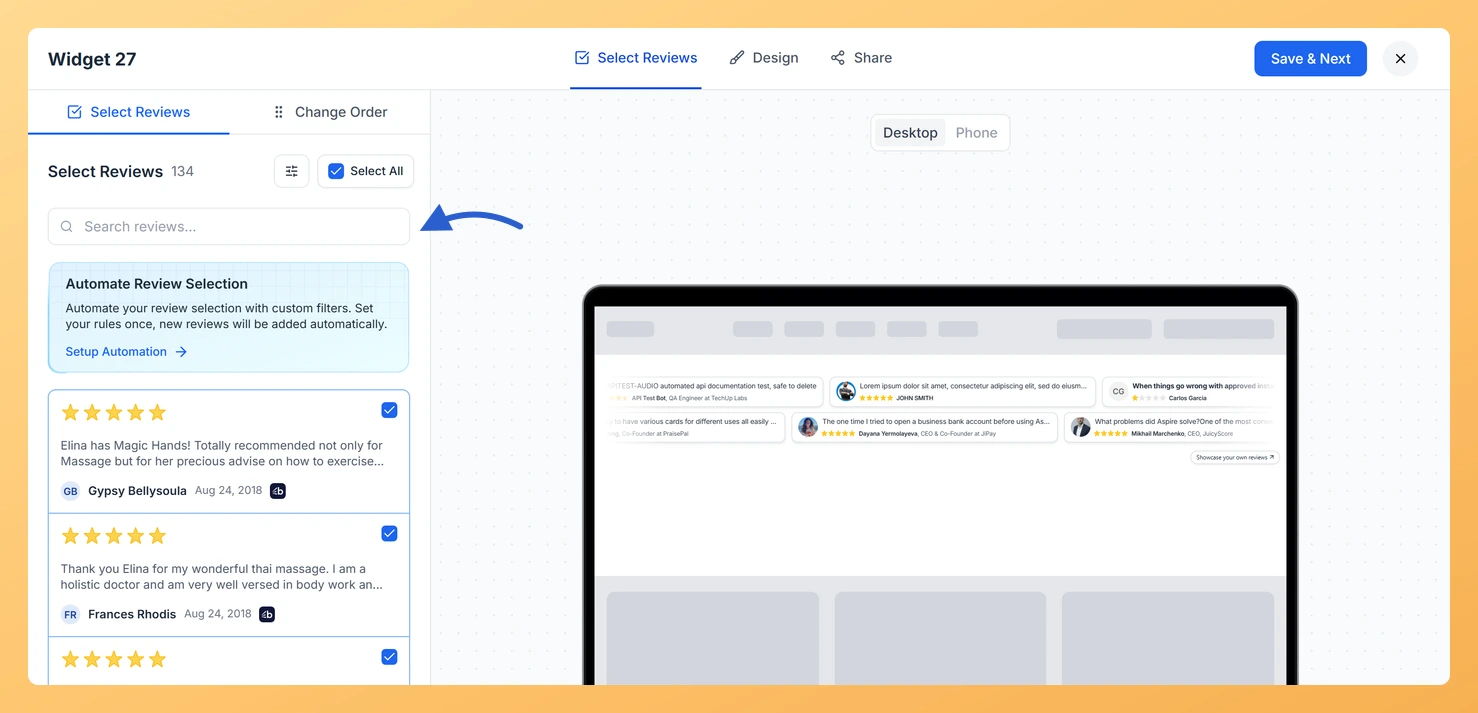
Step 2: Search by keyword
Type a word or phrase into the Search reviews box at the top of the list. The list reloads after a moment to show only matching reviews. Click the X in the box to clear the search.
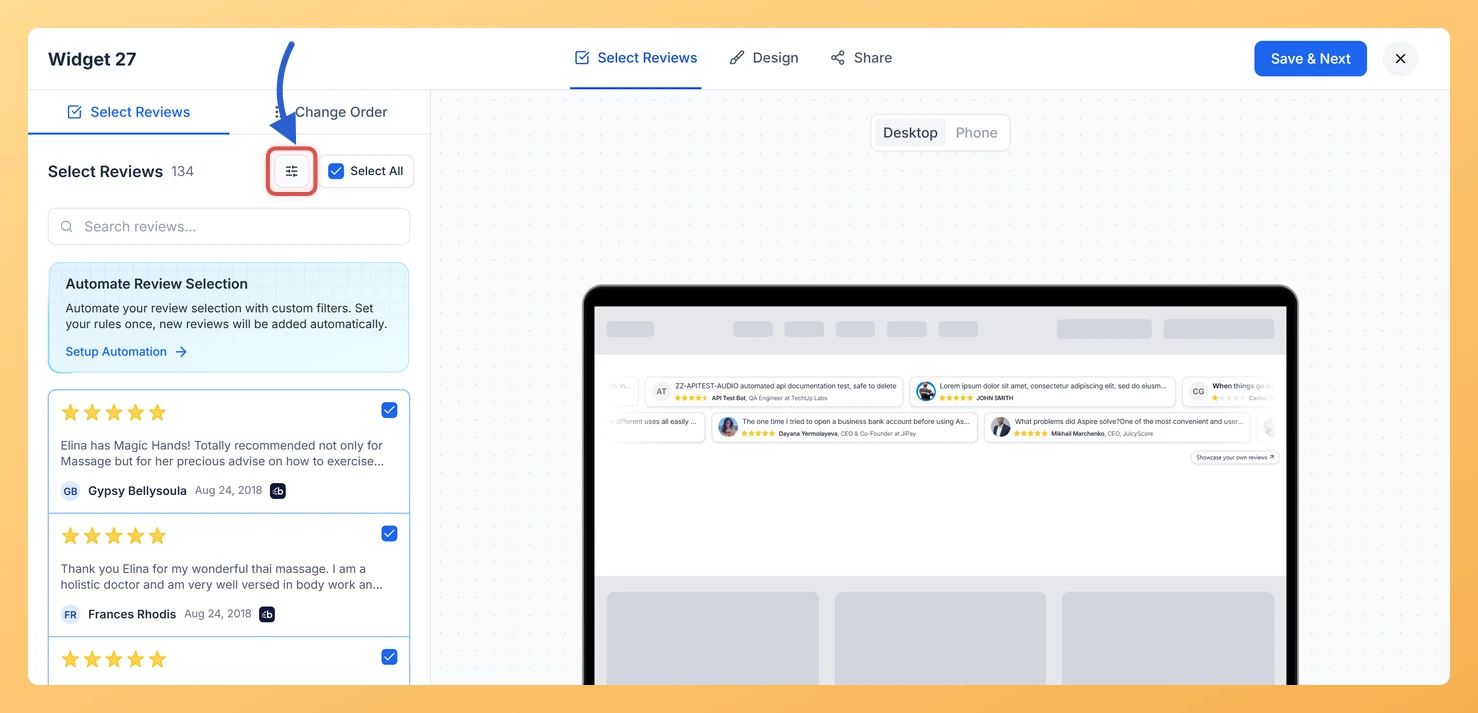
Step 3: Open the filter panel
Click the Filter button, the icon with sliders beside the Select All checkbox. The review list is replaced by the filter panel, and the heading changes to Filter Reviews.
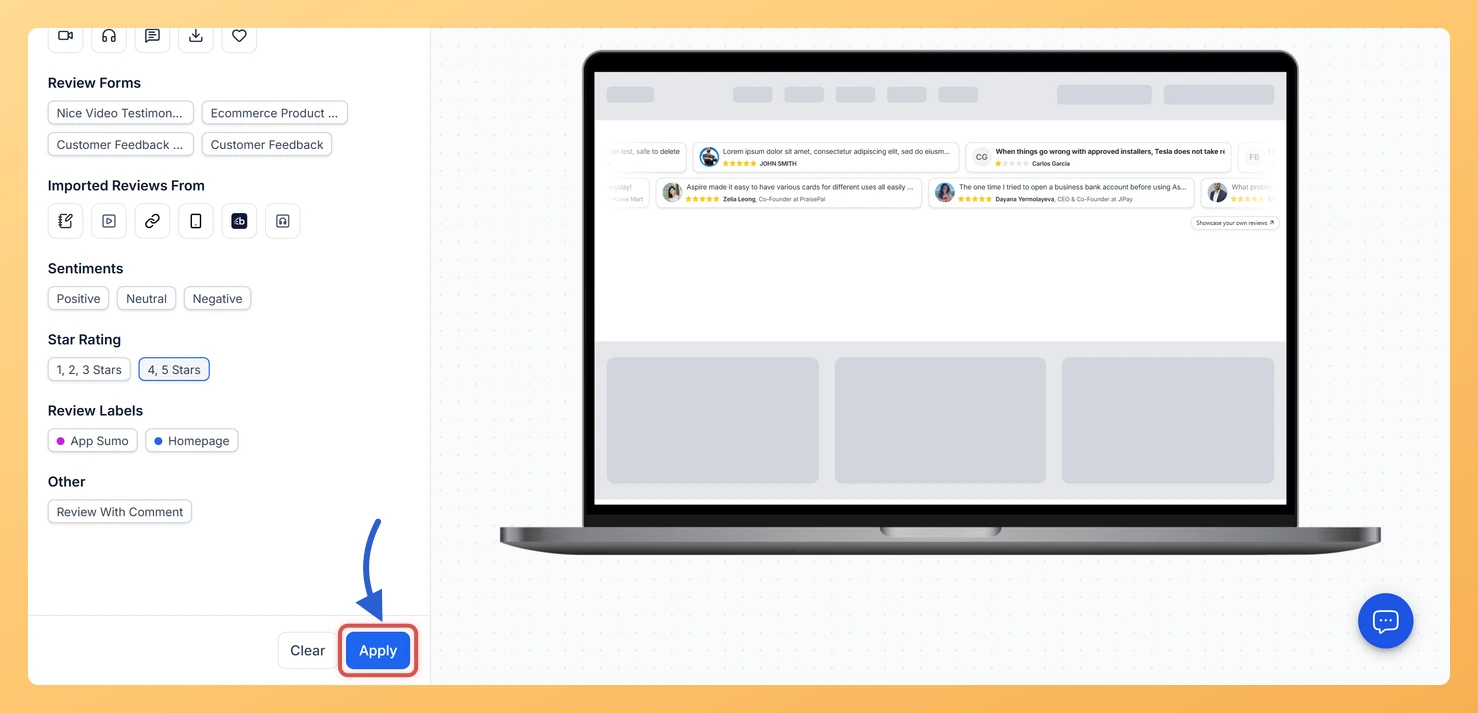
Step 4: Choose your filters and apply them
Pick any combination of these, then click Apply at the bottom of the panel:
Review Type: video, audio, text, all imported reviews, or favourites.
Review Forms: reviews collected through a particular Feedspace form.
Imported Reviews From: reviews imported from a particular platform.
Sentiments: Positive, Neutral or Negative.
Star Rating: 1, 2, 3 Stars or 4, 5 Stars.
Review Labels: reviews you have tagged with a label.
Other: Review With Comment.
Review Forms, Imported Reviews From and Review Labels only appear when you have reviews in those groups. The list reloads with just the matching reviews, and the Filter button shows how many filters are active.
Step 5: Tick the reviews you want
Tick the checkbox on each review you want in the strip. Each one is added to the preview as you tick it. To start over, open the filter panel again and click Clear.
Set up automation so new reviews that match your rules are added for you.
Common questions
What happens if no reviews match my filters?
Feedspace shows No Reviews Found 🙁 with two buttons: Change Filter reopens the panel and Reset Filter clears everything. Your full list of reviews still shows underneath, so you can pick from it straight away.
Do filters remove reviews I already selected?
No. Filters and search only change which reviews you see in the list. Reviews already in the widget stay in it until you untick them.
You might also find helpful
How Do I Select Reviews for My Strip Slider Widget in Feedspace?
Overview A Strip Slider widget in Feedspace only plays the reviews you add to it. On the Select Reviews tab of the widget editor you tick reviews one by one, or use the Select All checkbox to add every review in the list at once. Each card in the strip...
How Do I Use Automation to Auto-Select Reviews on My Strip Slider Widget in Feedspace?
Overview The Strip Slider widget in Feedspace displays your reviews in a compact horizontal strip of cards that slides across the page, making it well suited for tight spaces such as headers, footers, and sidebar sections. Because this widget is always in motion and highly visible, keeping it stocked with...
What is a Widget in Feedspace?
Overview In Feedspace, a widget is a customizable display tool that allows you to showcase your collected reviews, testimonials, or feedback directly on your website. With widgets, you can turn customer voices into social proof, helping you build trust and credibility with visitors. Instead of just collecting reviews, widgets let...