The Select Reviews tab is where you choose exactly which testimonials appear on your Wall of Love page. You can search by keyword, open the filter panel to narrow reviews by type, rating, form, source, label, and more, then tick the cards you want to include.
This gives you full control over the story your page tells, for example building a page that shows only 4 and 5 star video reviews from a specific product form.
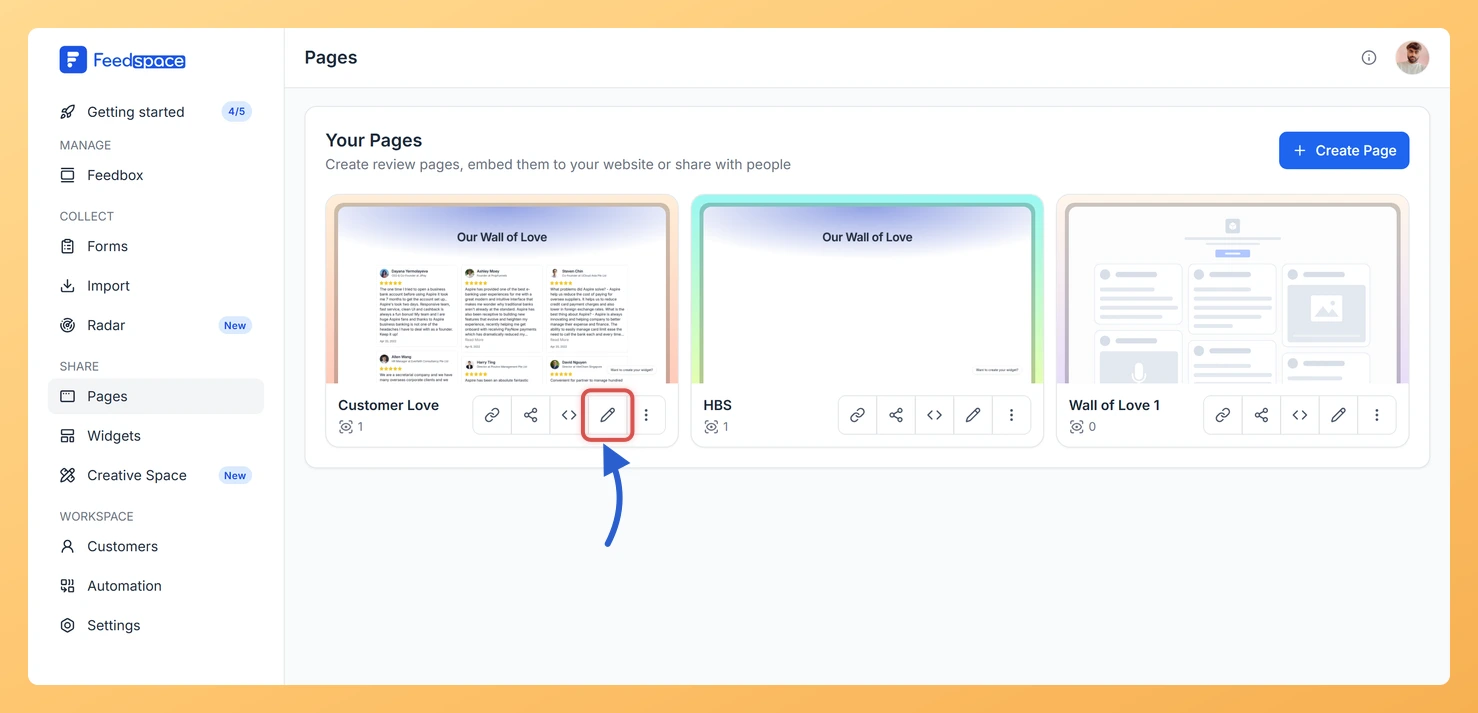
Click the pencil (edit) icon on the page card to open the editor. It opens on the Select Reviews tab.
Step 2: Search for reviews
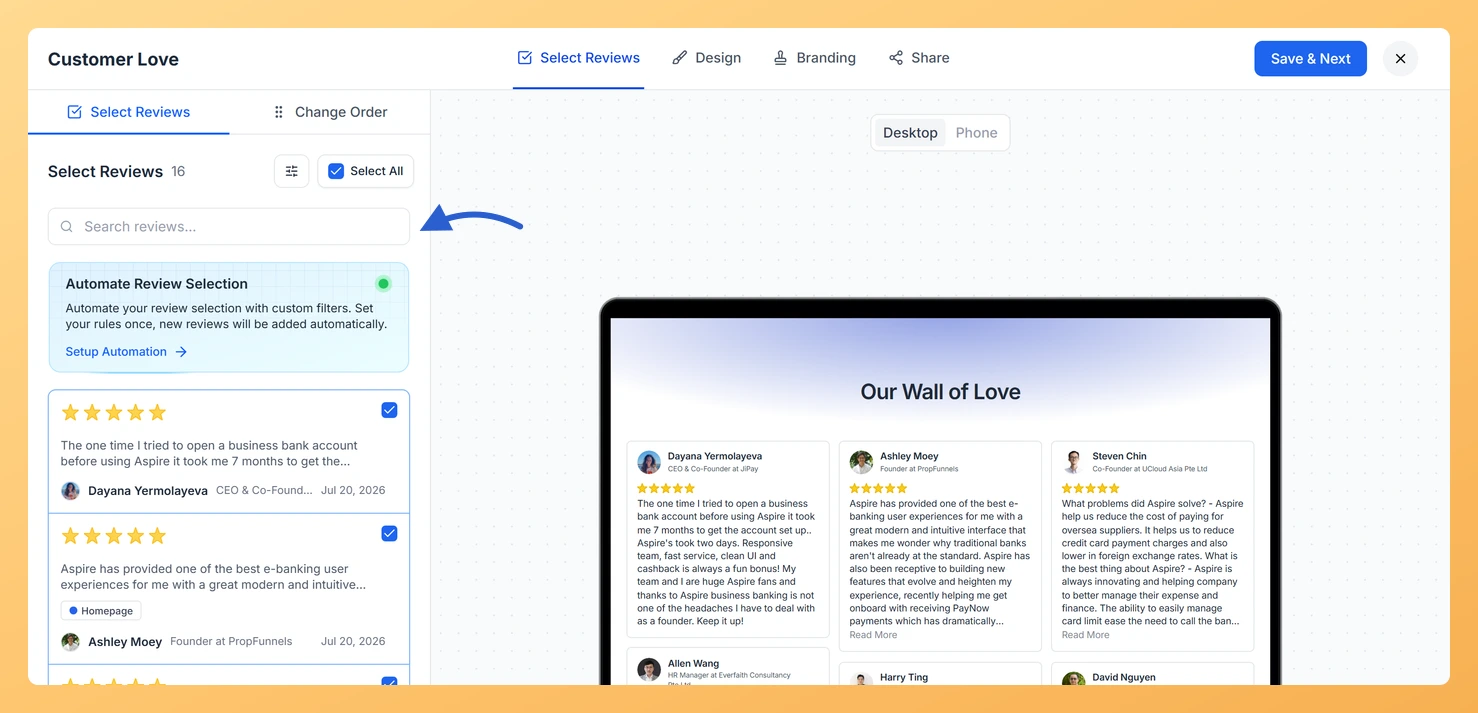
Use the search bar at the top of the review list to find reviews by keyword. Type any word from the review text, the reviewer’s name, or their company name to narrow down the results instantly.
Step 3: Apply filters
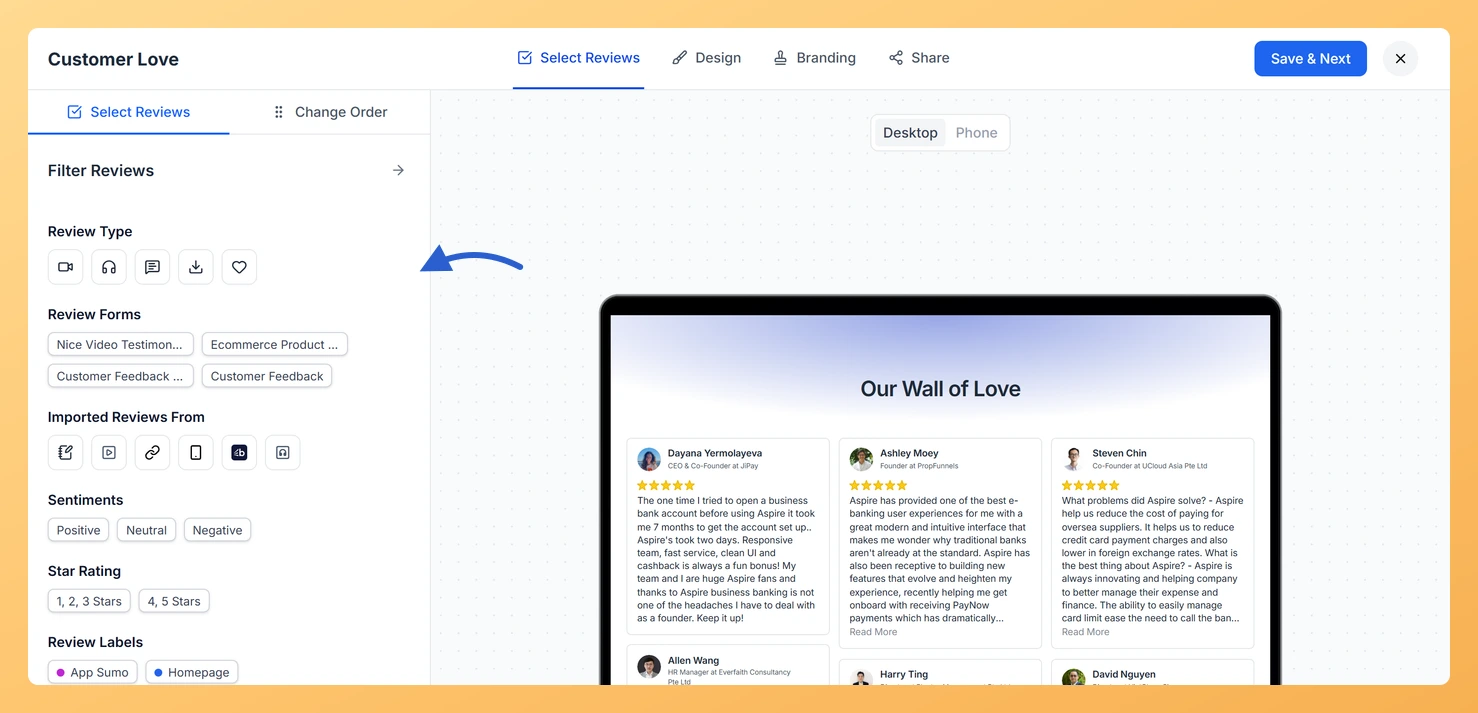
Click the Filter button to open the filter panel. You can combine multiple filters to find exactly the reviews you want to include:
Review Type: Video, audio, text comments, highlighted text, images, or favourites.
Reviewer Details: Only show reviews where the reviewer has a name, profile image, job role, or company listed.
Star Ratings: Filter by star rating, from 1 to 5 stars.
Sentiments: Positive, neutral, or negative.
Review Forms: Show only reviews collected from a specific form.
Imported Sources: Filter by the external platform the review was imported from.
Labels: Filter by any label you have assigned in your Reviews section.
Keywords: Include reviews containing certain words, or exclude reviews that contain specific terms.
Step 4: Select reviews
Click a review card to select it. A checkmark appears on each selected review. Click Select All to add all reviews currently matching your filters at once. A counter at the top shows how many reviews are selected for the page.
To take a review off the page, go back to the Select Reviews tab and click its card again to untick the checkmark. The review leaves the page right away and the live preview updates. It stays in your Feedbox, so you can add it back any time by ticking it again.
Step 5: Save and continue
When your selection is ready, click Save and Next to move to the Design tab and continue setting up your page.
What’s next
Show only your strongest testimonials by filtering for 4 and 5 star reviews.
Build a focused page for a specific product by filtering reviews from that product’s form.
Mix review types: combine video, audio, and text reviews for a richer visitor experience.
Keep the page credible by selecting only reviews where the reviewer has a name and photo.
Use label filters to create pages tailored to different audiences, industries, or use cases.
Common questions
How do I remove a review from my Wall of Love?
Open the page editor and stay on the Select Reviews tab. Find the review you want to drop, then click its card to untick the checkmark. It comes off the page straight away, which is handy when an event ends or a campaign wraps up. The review stays in your Feedbox, so you can tick it again later to bring it back.
Does removing a review from the page delete it?
No. Unticking a review only takes it off this Wall of Love. The review still lives in your Feedbox and on any other page or widget where you have selected it.
You might also find helpful
How to Create a Wall of Love Page in Feedspace
Steps to Create a Page Log into Feedspace Sign in with your account credentials. Go to Pages From the left sidebar, click Pages. Create Page Click Create Page. This opens the creation screen with some reviews auto-selected in the space. Select Reviews Go to the Select Review page and choose...
How Do I Reorder Reviews on My Wall of Love Page?
Overview Reordering lets you set the exact sequence reviews appear in on your Wall of Love page. You can sort by newest or oldest, or drag each review into the position you want for a fully custom order. This article covers reordering reviews on a Wall of Love page. To...
How Do I Use Automation to Auto-Select Reviews on My Wall of Love Page?
Overview The automation feature on a Wall of Love page lets you define a set of filters once. After that, any new review in your account that matches those filters is automatically added to the page without any manual action needed. This keeps your page fresh and up to date...