The Floating Cards widget keeps one review card visible at the bottom of your site while visitors browse. Where that card sits matters, because your own buttons, chat bubble or cookie bar may already live in the same corner.
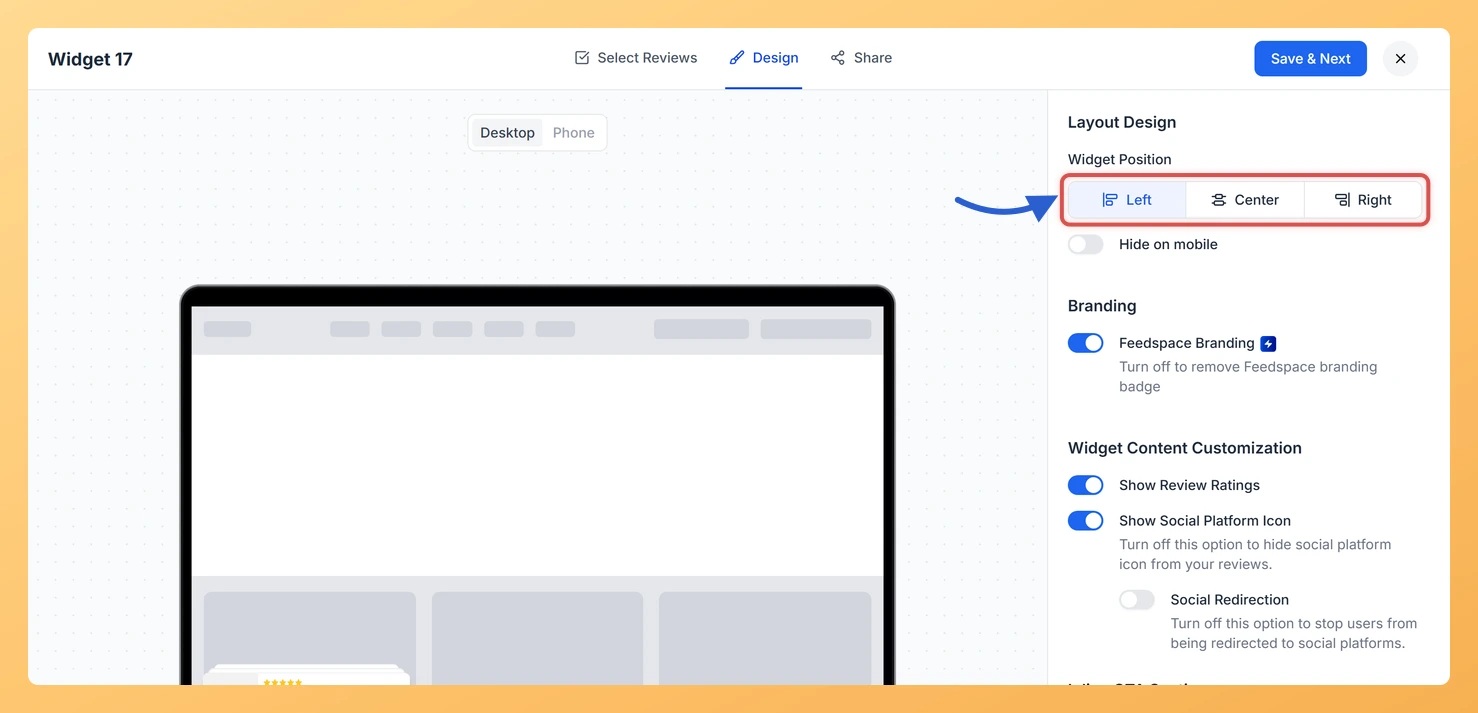
Widget Position under Layout Design on the Design tab offers Left, Center and Right. Right below it, Hide on mobile lets you keep the card off small screens.
How to set the position of your Floating Cards widget
Step 1: Find your widgets
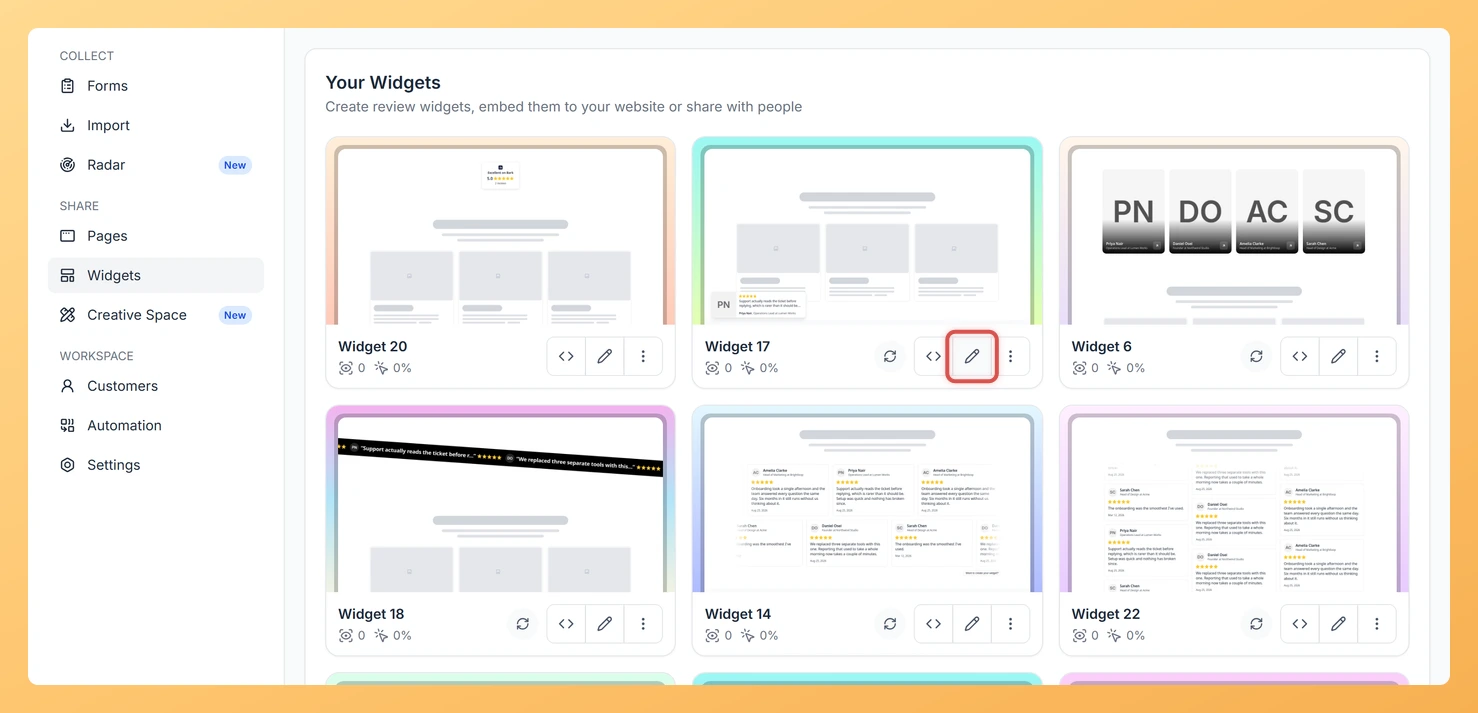
In Feedspace, choose Widgets from the left-hand sidebar.
Step 2: Open the editor
Locate the Floating Cards widget and use the Edit (pencil) icon on its card.
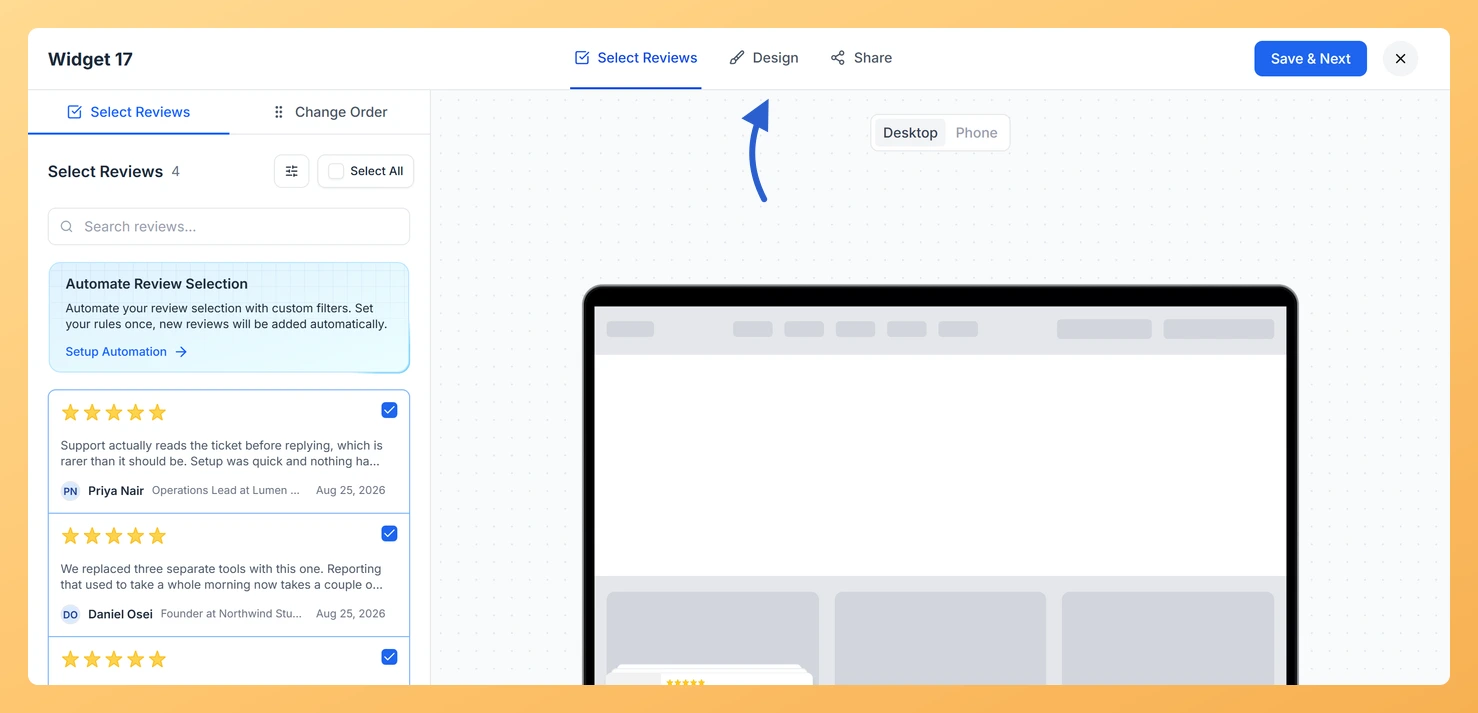
Step 3: Select Design
At the top of the editor, select Design.
Step 4: Find Layout Design
Layout Design is the first section in the settings panel on the right.
Step 5: Choose Left, Center or Right
Click one of the three Widget Position options. The preview moves the card to that side straight away.
Step 6: Save your changes
Press Save & Next to save. Your embedded widget shows the update the next time the page loads.
Open your site with the widget embedded and check the card against your own buttons in that corner.
Common questions
Can the card sit at the top of the page?
Widget Position sets the side, and the card stays at the bottom of the page in all three options.
You might also find helpful
How Do I Hide My Floating Cards Widget on Mobile in Feedspace?
Overview The Floating Cards widget displays your reviews as animated notification-style cards that gently float and drift across the screen, creating an eye-catching social proof effect for visitors. Because the cards animate across the full viewport, they work best on the wider screens of desktops and tablets where there is...
How to Create a Floating Cards Widget in Feedspace
Overview The Floating Cards widget in Feedspace displays your reviews in stack-like cards that float over your website layout. You can position them on the left, center, or right side of the screen. This widget is perfect for showing continuous feedback without interrupting the visitor’s browsing experience. How to access...
How Do I Customize the Design of My Widget in Feedspace?
Overview Feedspace widgets come with a powerful Design tab that lets you tailor every visual aspect of your widget. From card colors and fonts to dark mode and call-to-action buttons, you can fully customize the look to match your website’s brand without writing any code. How to Customize the Widget...