The Horizontal Scroll widget moves rows of review cards sideways across your page like a news ticker. One long review can stretch a card far beyond its neighbours, which leaves the whole row looking uneven and pushes the shorter reviews out of sight.
Shorten Long Reviews in the Widget Content Customization section cuts each review after a few lines and adds a “read more” link. Its description in the app reads “Enable to show ‘read more’ after few lines of review text. Best to adjust more reviews in less space.”
How to shorten long reviews on your Horizontal Scroll widget
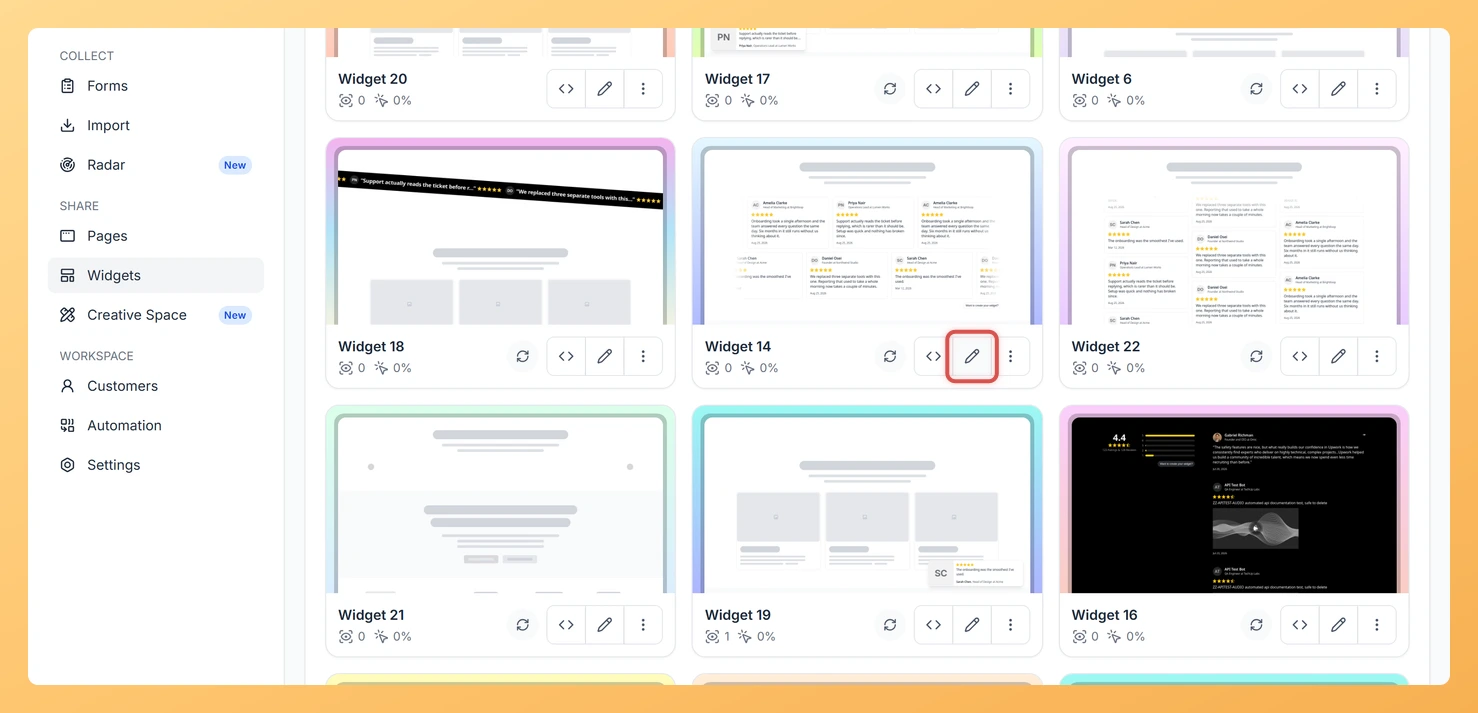
Step 1: Go to Widgets
Sign in to Feedspace and click Widgets in the left sidebar.
Step 2: Open the widget editor
Find your Horizontal Scroll widget and click the Edit (pencil) icon on its card.
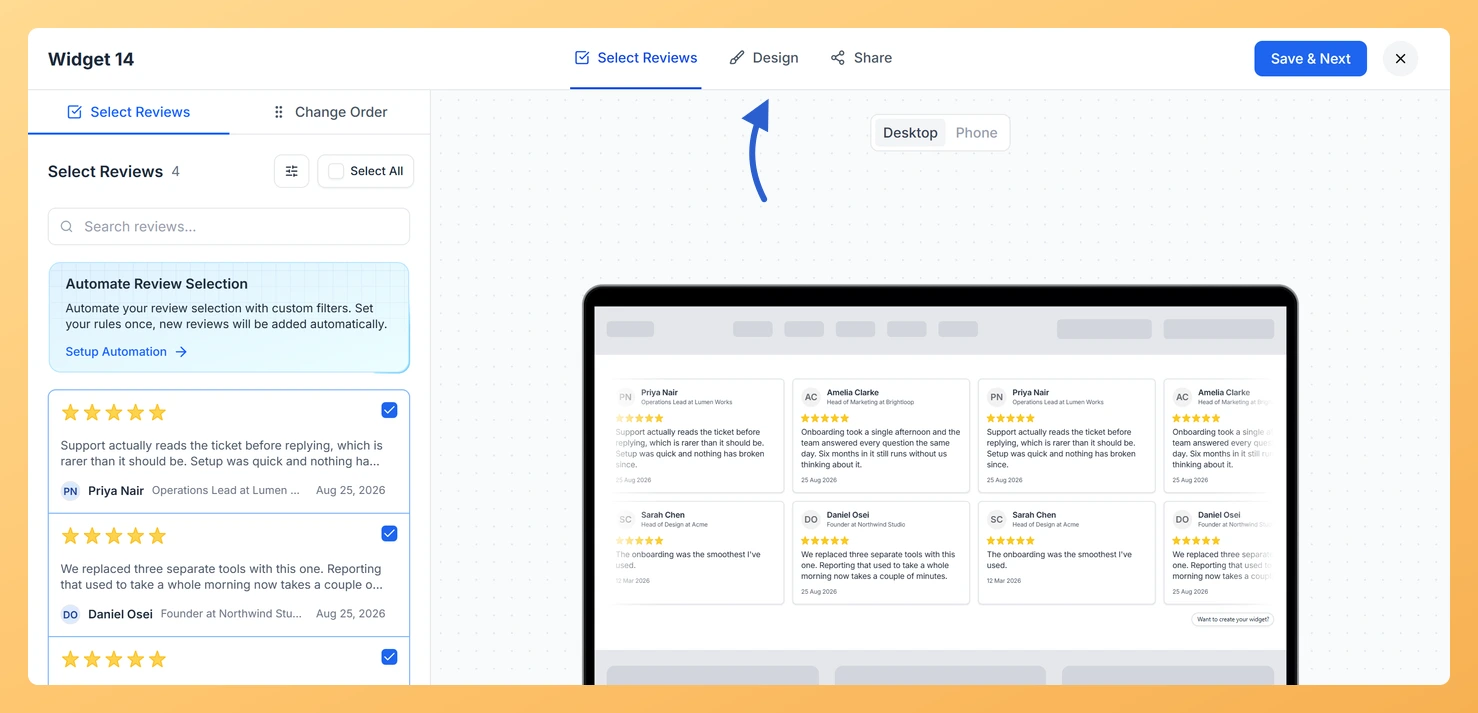
Step 3: Switch to Design
Click Design at the top of the editor.
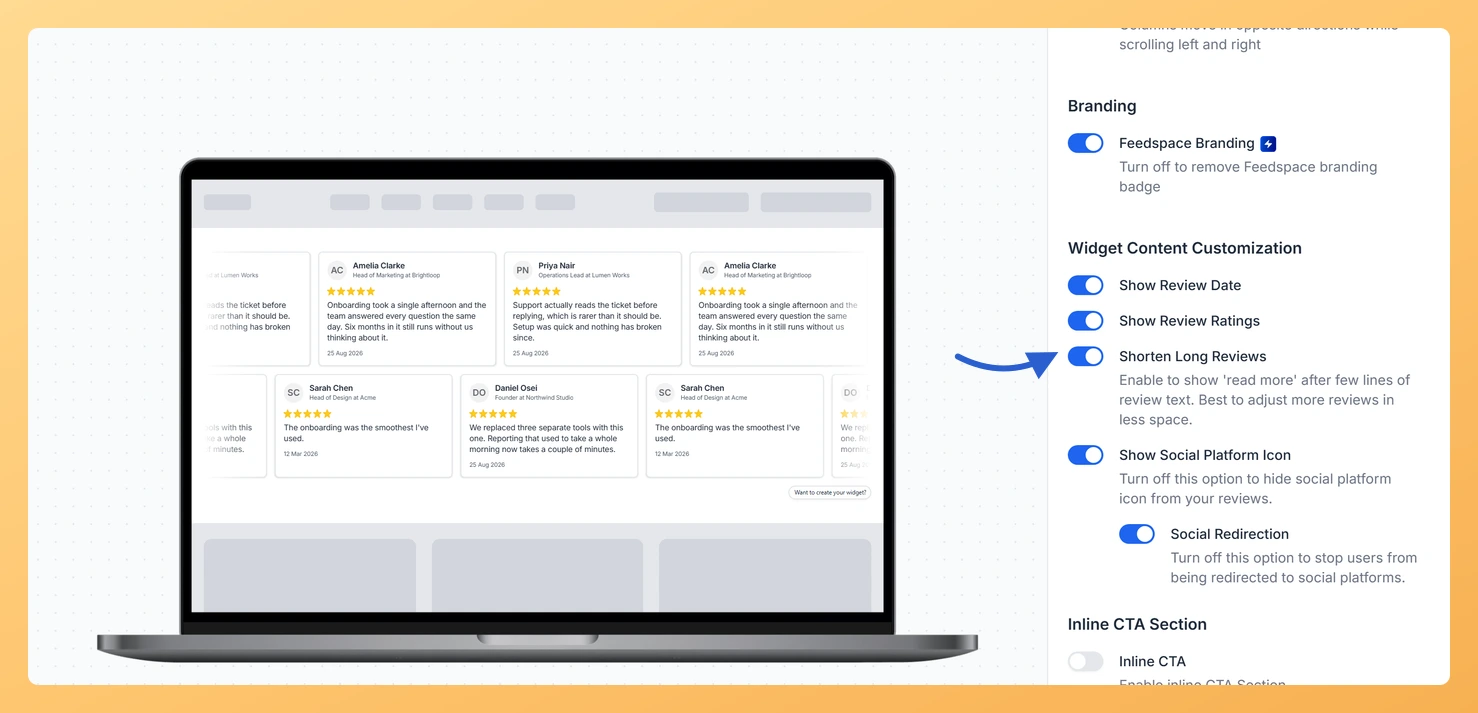
Step 4: Scroll to Widget Content Customization
In the settings panel on the right, scroll to the Widget Content Customization section.
Step 5: Turn on Shorten Long Reviews
Switch on Shorten Long Reviews. The cards in the preview shrink to a few lines each, with a “read more” link on the longer ones.
Step 6: Save your changes
Click Save & Next. Any page that already embeds this widget shows the change on its next load, with no embed code to replace.
No. The full text stays on the review in your Feedbox, and visitors can open it with the “read more” link.
You might also find helpful
How Do I Show or Hide Star Ratings on My Horizontal Scroll Widget in Feedspace?
Overview The Horizontal Scroll widget moves rows of review cards sideways across your page like a news ticker. Star ratings give visitors a quick read on each review, though on a page that already carries a rating summary they can start to feel repeated. The Show Review Ratings toggle in...
How to Create a Horizontal Scroll Widget in Feedspace
Overview The Horizontal Scroll widget in Feedspace showcases your reviews in a smooth side-by-side scrolling motion. It is perfect for sections where you want continuous movement and visual engagement, such as website headers, testimonial rows, or landing pages. How to Access Step 1 – Log in to Feedspace Go to...
How Do I Customize the Design of My Widget in Feedspace?
Overview Feedspace widgets come with a powerful Design tab that lets you tailor every visual aspect of your widget. From card colors and fonts to dark mode and call-to-action buttons, you can fully customize the look to match your website’s brand without writing any code. How to Customize the Widget...