The Verified badge marks the reviews whose words reached Feedspace straight from the reviewer: ones collected through your Feedspace forms, and ones imported directly from the platform they were posted on. Switch on Show Verified Badge on the Design tab of a widget or Wall of Love page, and the badge appears beside the date on those reviews.
It helps on a pricing or checkout page, where a visitor deciding whether to buy wants to know that the reviews in front of them came from real customers and were not written or reworded by the business.
Steps to show the Verified badge
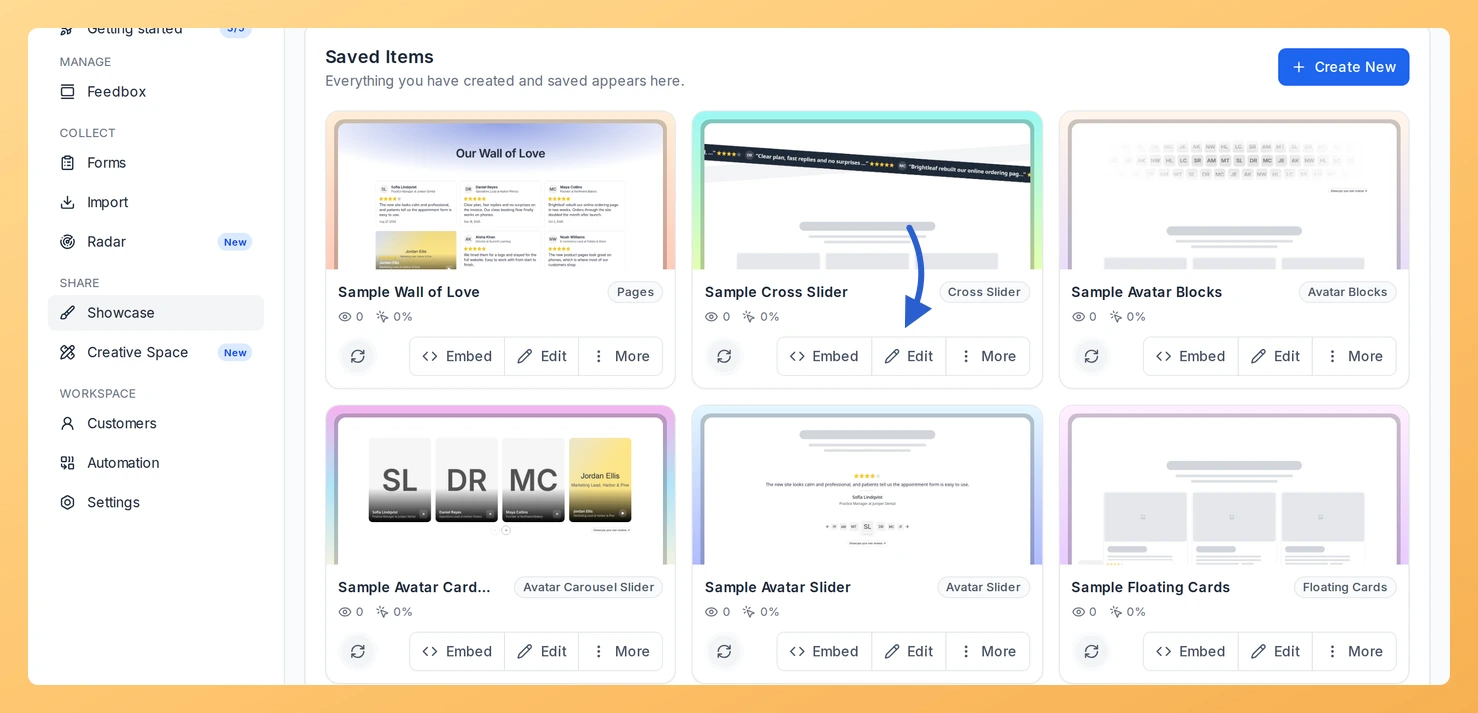
Step 1: Open the widget or page from Showcase
Click Showcase in the left sidebar, then click Edit on the card of the widget or Wall of Love page that should show the badge.
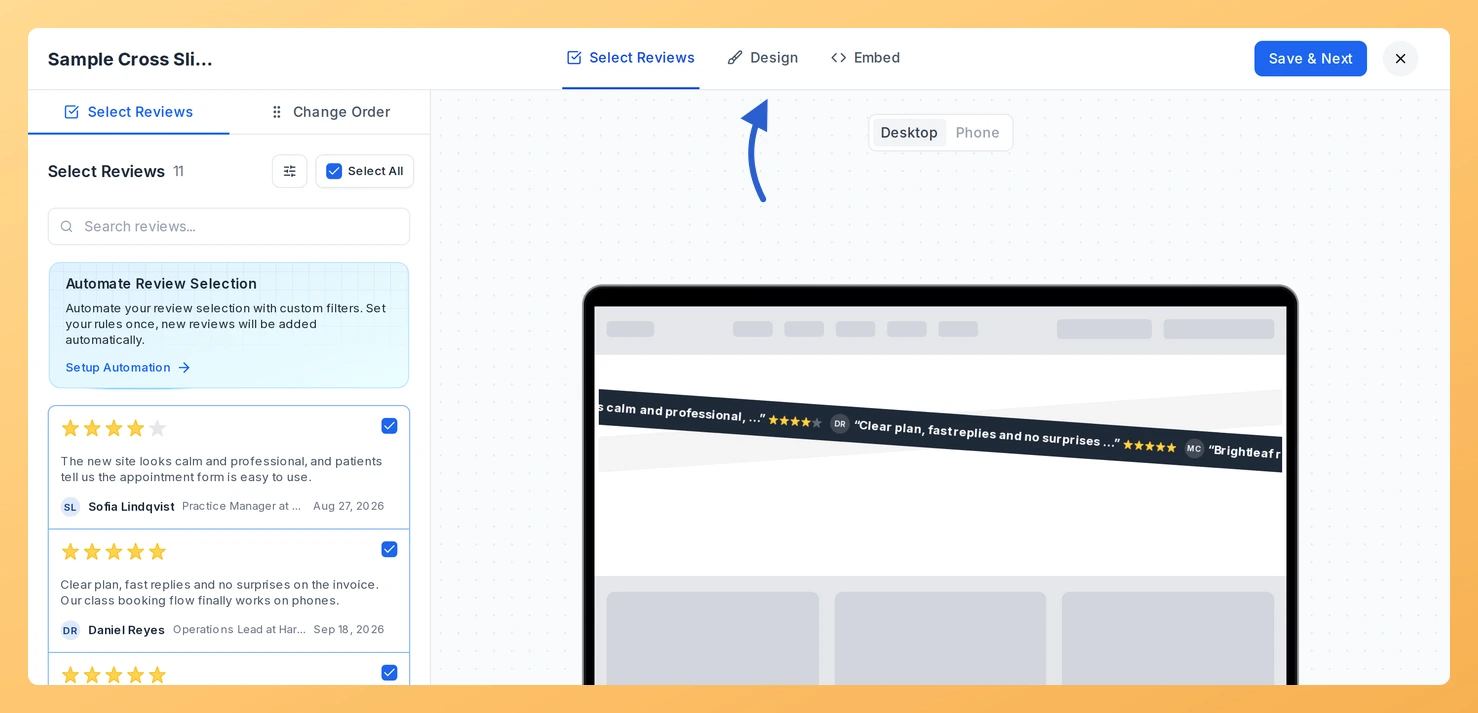
Step 2: Go to the Design tab
In the editor header, click Design. The settings open on the right, next to the live preview.
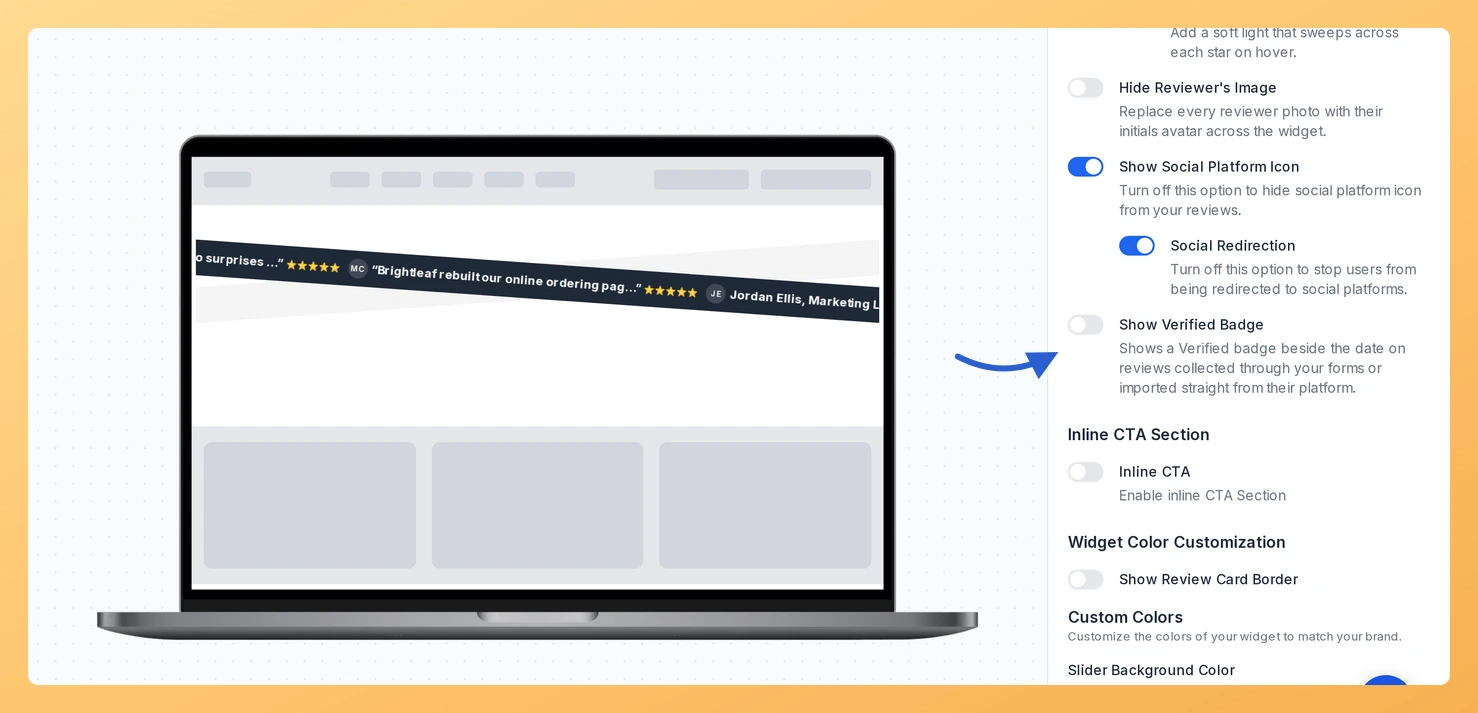
Step 3: Switch on Show Verified Badge
Turn on Show Verified Badge. Where it sits depends on what you are editing:
A widget: under Widget Content Customization.
A Floating Badge or Review Badge widget: under Content Customization.
A Wall of Love page: under Review Content Customization.
A widget you create from Showcase has the switch on already. Widgets made before the badge existed, and Wall of Love pages, start with it off.
Step 4: Save
Click Save & Next. Your widget or page picks up the change without you pasting its code again.
Which reviews get the badge
Text, video and audio reviews submitted through one of your Feedspace forms.
Reviews imported straight from the platform they were posted on.
Not reviews you added yourself: typed in by hand, uploaded as a video or audio file, imported from a CSV file, an image or a web link, or brought over from another testimonial tool.
Not translated copies of a review, because their words come from the translation.
In Feedbox, a verified review shows the badge icon beside its date. Hover over it to see Verified review.
Why did one of my reviews lose its Verified badge?
Someone in your workspace changed its text, title, star rating or recording. Any of those edits removes the badge for good, even if the words are later changed back. The Edit Review window warns about this on a verified review. Changing the reviewer’s details, such as their name or photo, keeps the badge.
Does duplicating a review keep the badge?
A plain copy keeps whatever the original has: a verified review’s copy is verified too. A translated copy never gets the badge.
You might also find helpful
How Do I Customize the Design of My Widget in Feedspace?
Overview Every Feedspace widget has a Design tab where you decide how it looks on your site: colors, font, card borders and shadows, what each review card shows, and an optional call-to-action card. Each change appears in the live preview as you make it. A common case: you embed a...
How Do I Customize Review Display Settings on My Wall of Love Page?
Overview The Review Content Customization settings on a Wall of Love page control what appears on each review card, including the reviewer’s photo, date, star rating, social platform icon, whether long reviews are shortened, and whether the reviews are shuffled. The Page Color Customization section adds the review card border...
How to Edit a Review in Feedspace
Overview Feedspace lets you edit the details of imported or collected reviews. This is helpful when you want to update reviewer info, correct details, or add missing fields like company name, designation, or email before you showcase the review. Step 1: Go to Feedbox Step 2: Open review options Step...