The Avatar Card Carousel widget shows each review as a tall card led by the reviewer’s photo or initials, with the cards sliding sideways across your page. Showing when each review was written tells visitors the feedback is recent, which matters most for services and products that change often.
The Show Review Date toggle in the Widget Content Customization section adds the date to every card. Turn it off if you prefer cards without dates.
How to show the review date on your Avatar Card Carousel widget
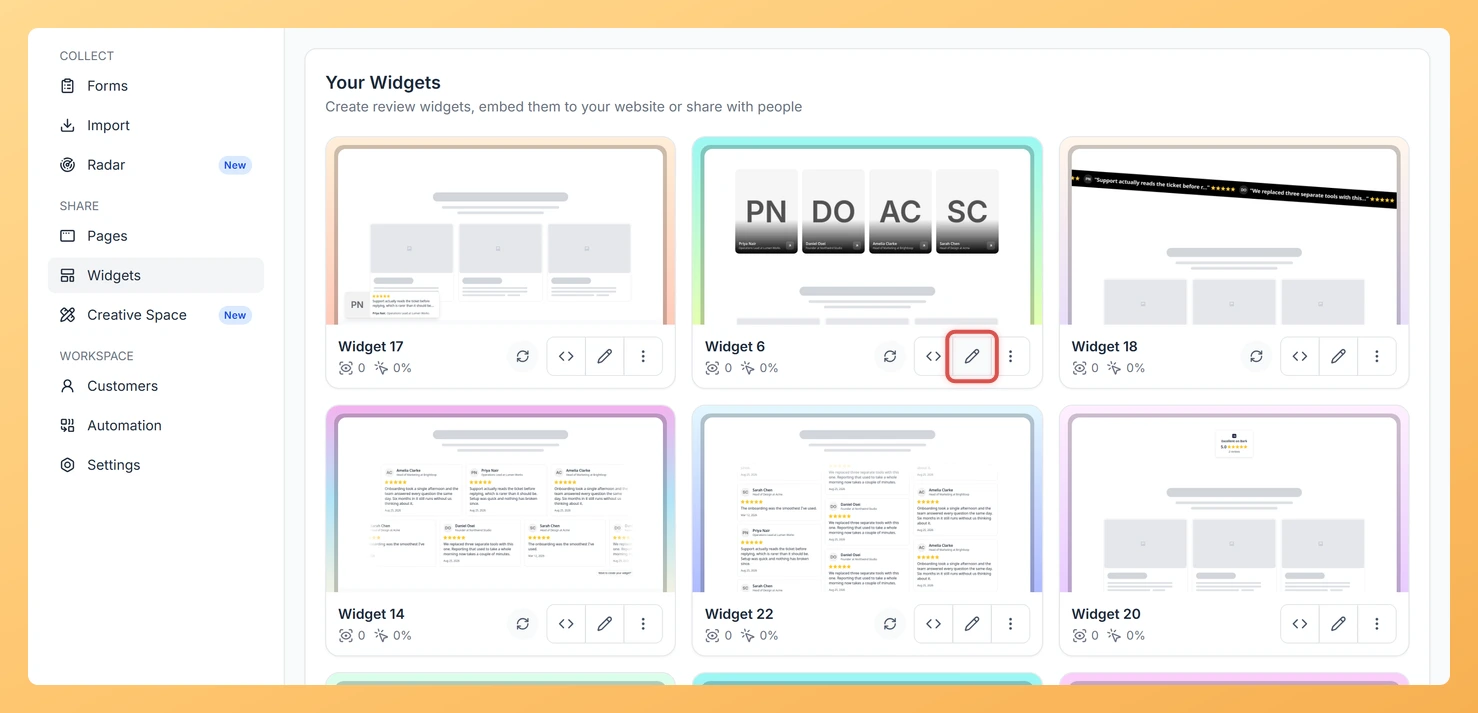
Step 1: Click Widgets
Log in to Feedspace and open Widgets from the left sidebar.
Step 2: Open the Avatar Card Carousel widget
Select the Edit (pencil) icon on the card for your Avatar Card Carousel widget.
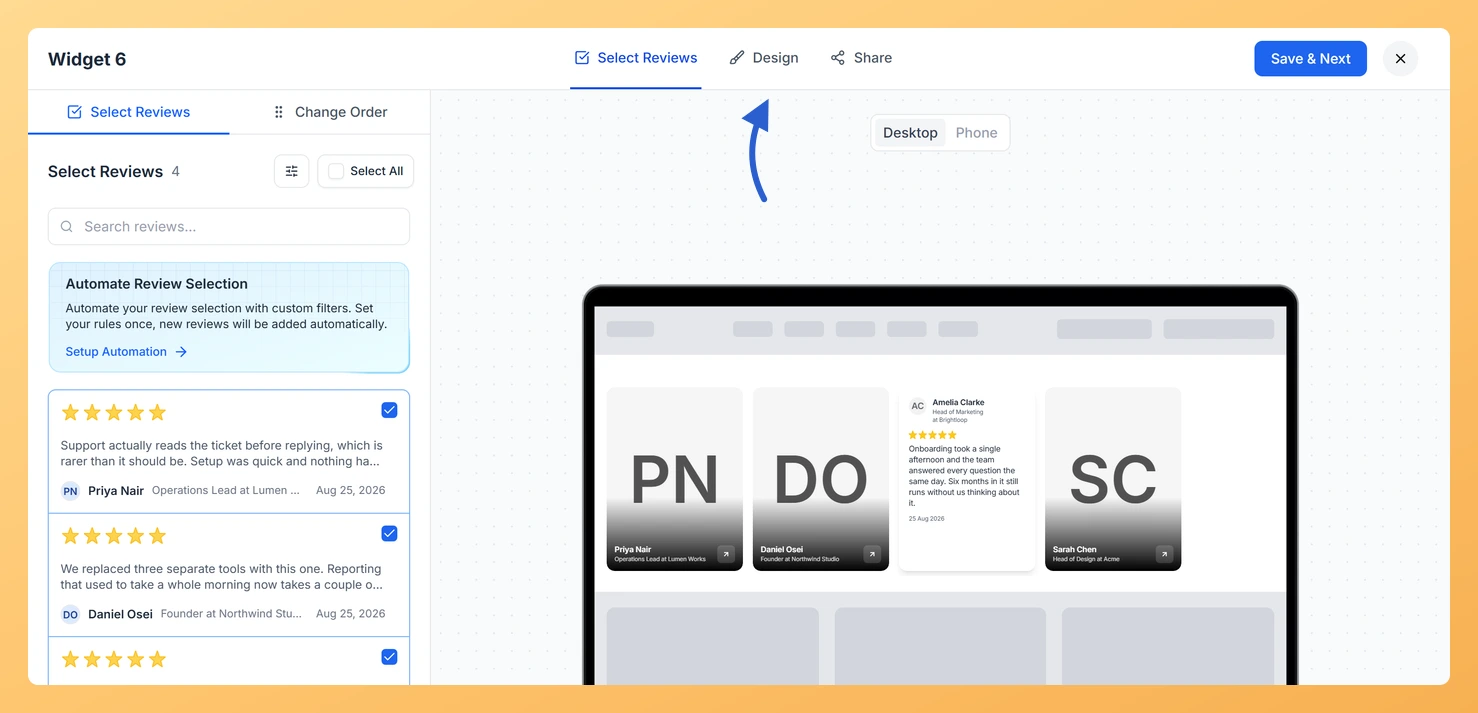
Step 3: Choose Design
Move to the Design tab in the editor header.
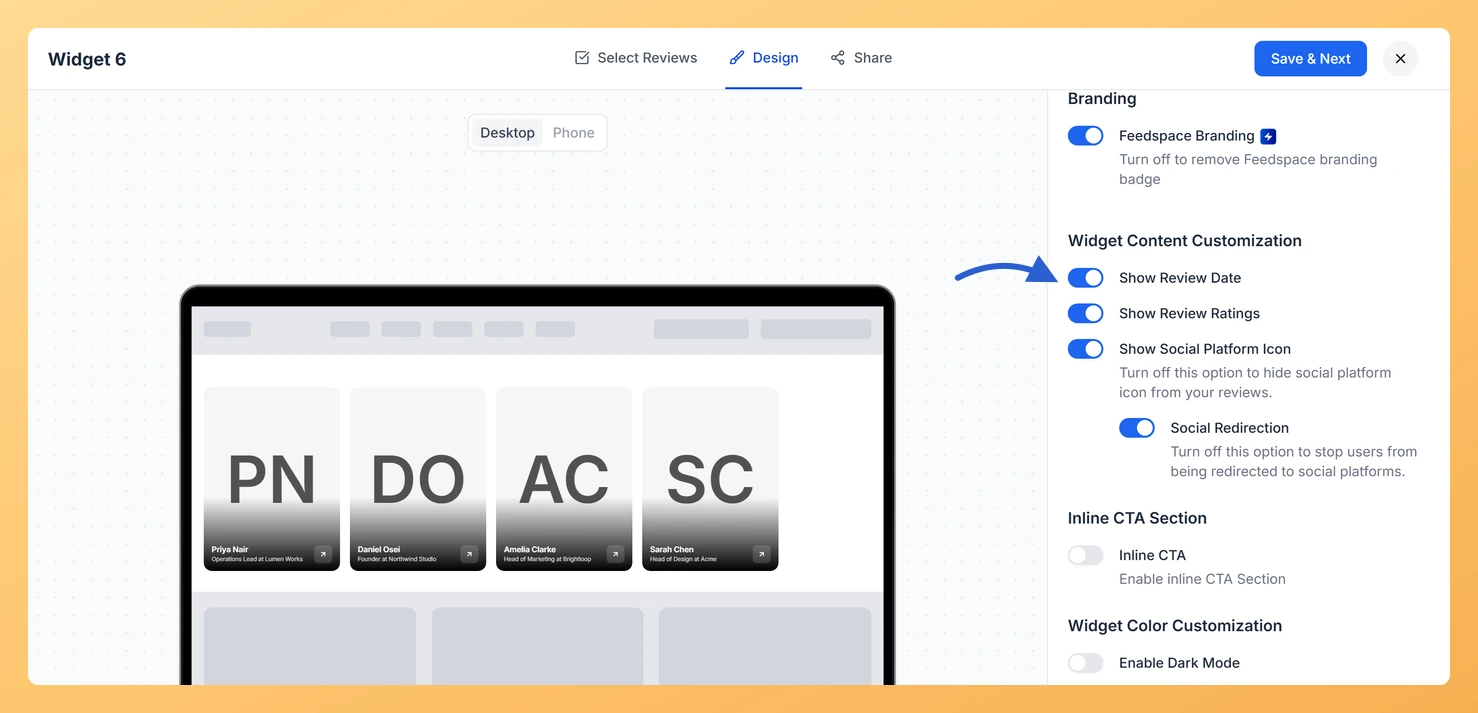
Step 4: Go to Widget Content Customization
Scroll the right-hand panel to the Widget Content Customization section.
Step 5: Turn on Show Review Date
Switch on Show Review Date. The date appears on the cards in the preview. Switch it off to hide the date again.
Step 6: Save your changes
Select Save & Next. The widget on your site picks the change up on its own, so the embed code stays as it is.
How Do I Show or Hide Star Ratings on My Avatar Card Carousel Widget in Feedspace?
Overview The Avatar Card Carousel widget slides tall review cards across your page, each one led by the reviewer’s photo or initials. Star ratings give visitors a quick read on each review, though on a page that already carries a rating summary they can start to feel repeated. The Show...
How to Create an Avatar Card Carousel Widget in Feedspace
Overview Feedspace’s Avatar Card Carousel widget combines the sliding motion of a carousel with prominent reviewer profile pictures. Each card highlights the reviewer’s avatar alongside their testimonial, making your social proof feel more personal and trustworthy. Step 1: Log in to Feedspace Go to your Feedspace Dashboard and log in...
How Do I Customize the Design of My Widget in Feedspace?
Overview Feedspace widgets come with a powerful Design tab that lets you tailor every visual aspect of your widget. From card colors and fonts to dark mode and call-to-action buttons, you can fully customize the look to match your website’s brand without writing any code. How to Customize the Widget...