
Overview
The Vertical Scroll widget displays your review cards in a continuously looping feed that scrolls upward without interruption. Because visitors see one card at a time as it moves through the feed, every detail on each card needs to earn its place. Enabling the Show Review Date toggle adds the date each review was submitted or imported directly onto the scrolling card, giving your audience immediate context for how recent and relevant the feedback is.
For a seamlessly looping feed, recency signals matter. A date stamp lets visitors see at a glance that reviews are current, which builds trust more effectively than undated testimonials. The toggle is found in the Widget Content Customization section of the Design tab and affects every card in the scroll loop at once.
How to Show the Review Date on Your Vertical Scroll Widget
Step 1: Open the Widgets Section
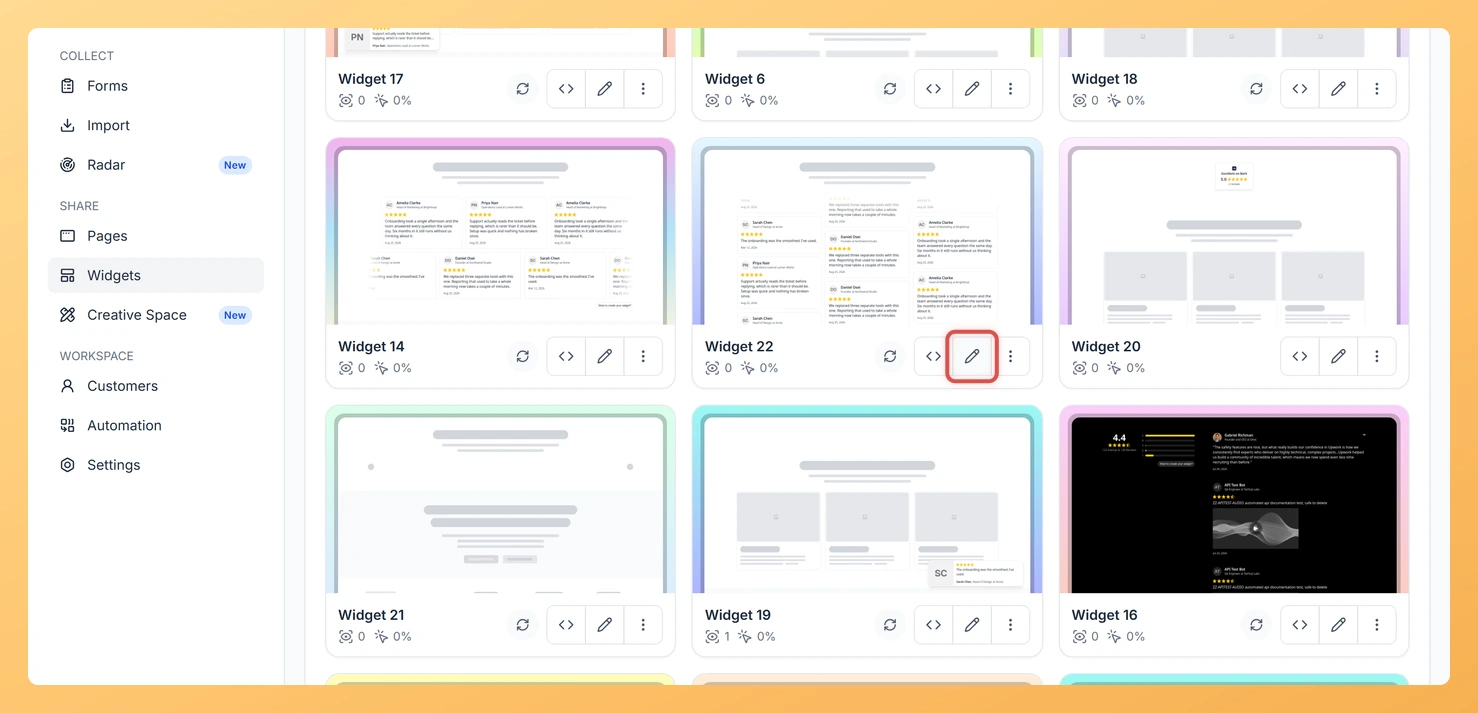
Log in to your Feedspace account. In the left-hand navigation, click Widgets to open the list of all widgets you have created.
Step 2: Edit Your Vertical Scroll Widget
Find your Vertical Scroll widget in the list. Click the Edit button (or the widget name) to open the widget editor.
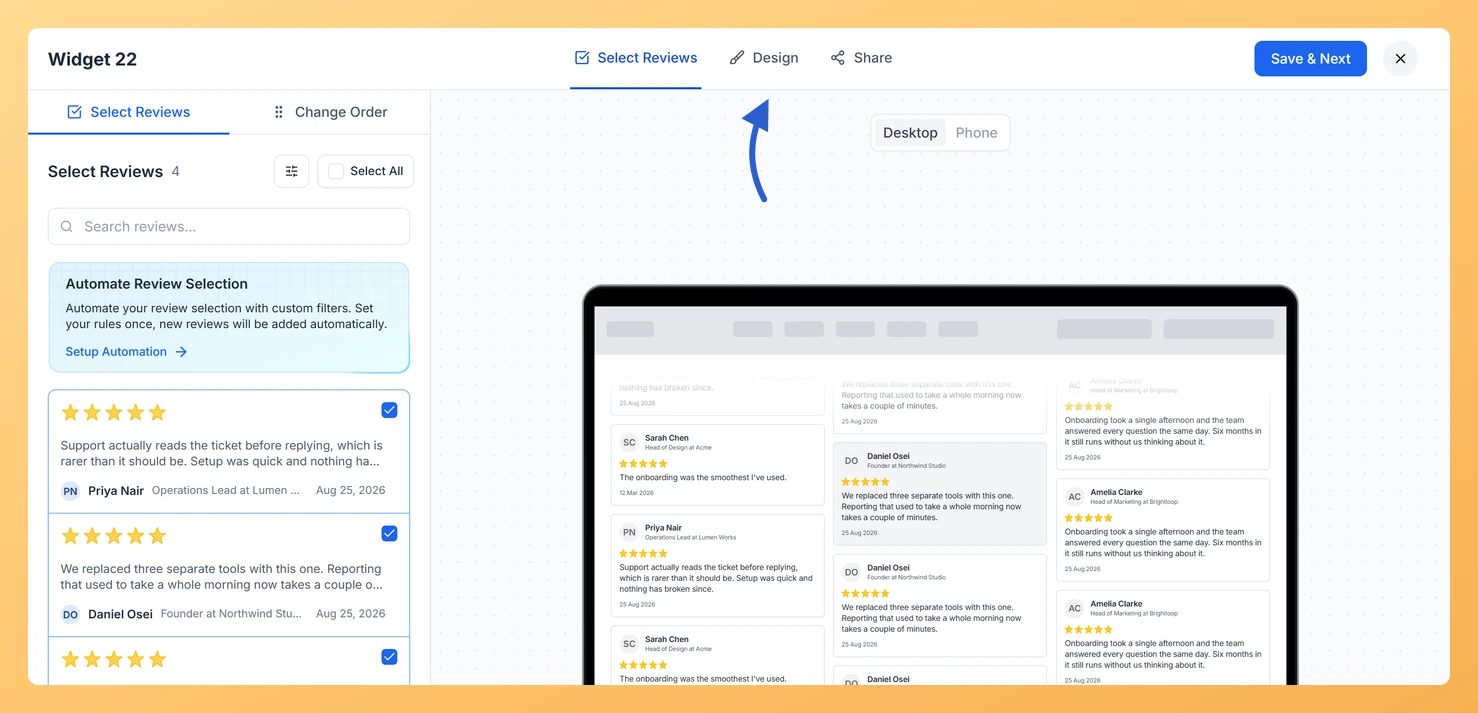
Step 3: Go to the Design Tab
Inside the widget editor, click the Design tab at the top of the panel. This tab contains all visual and content display options for your Vertical Scroll widget.
Step 4: Locate the Widget Content Customization Section
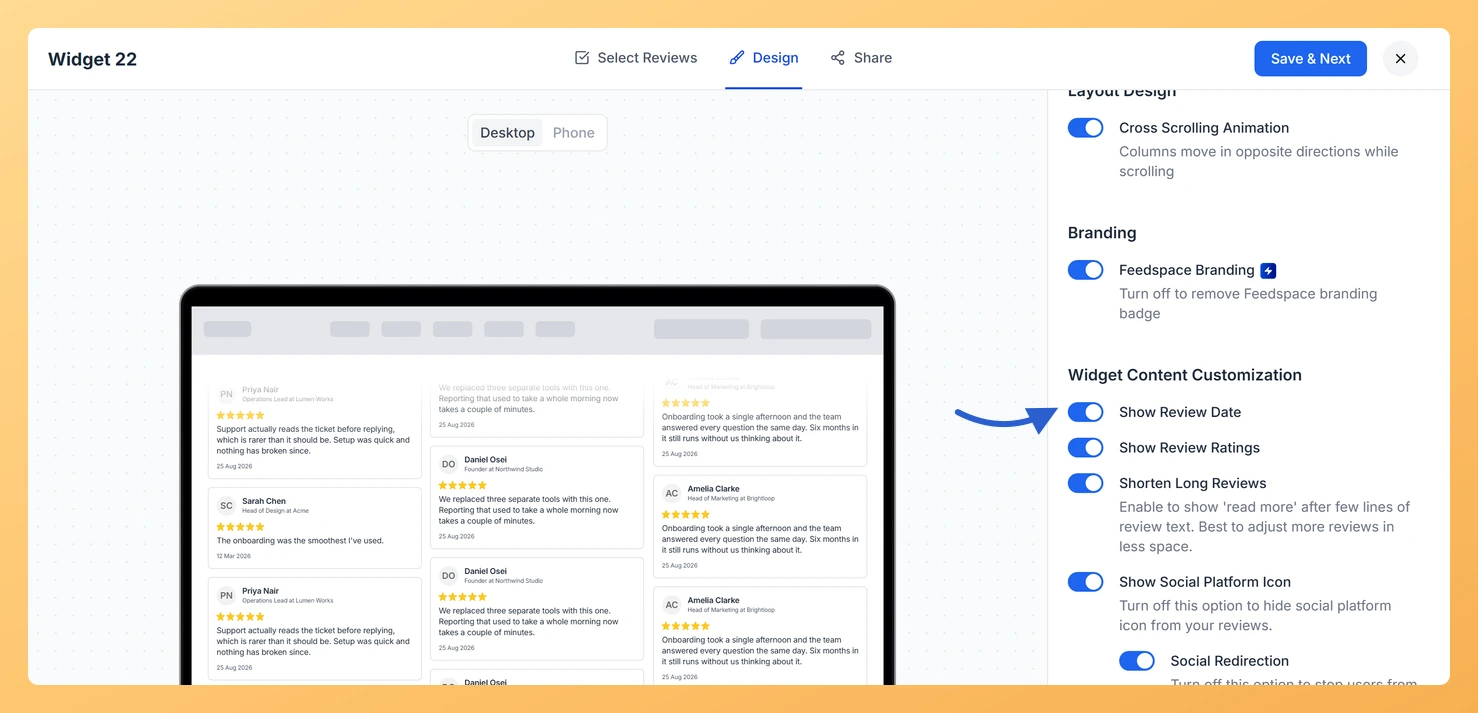
Scroll down within the Design tab until you reach the Widget Content Customization section. This section groups all toggles that control which pieces of information appear on each review card in the scroll feed.
Step 5: Enable the Show Review Date Toggle
Find the Show Review Date toggle and switch it on. Once enabled, the date each review was submitted or imported will appear on every card as it scrolls through the feed. To remove the date from the cards, switch the same toggle off at any time.
Step 6: Save and Publish Your Changes
Click Save to apply the change. Your embedded Vertical Scroll widget will update immediately, and the review date will now appear on each card as it loops through the continuous scroll.
What You Can Do Next
- Show or hide star ratings on each scrolling card to complement the date display by visiting the star ratings customization option in the same Design tab.
- Adjust the scroll speed and number of visible cards in the Vertical Scroll widget settings to give visitors enough time to read the date and review content as each card passes.
- Filter which reviews appear in the Vertical Scroll feed by rating or source so the dates shown reflect only your most relevant, high-quality testimonials.
- Copy the updated embed code from the widget editor and replace the existing snippet on your website to ensure the live feed reflects all your latest design changes.
You might also find helpful
How Do I Show or Hide Star Ratings on My Vertical Scroll Widget in Feedspace?
Overview The Vertical Scroll widget displays your review cards in a continuously looping vertical feed, cycling through each review one after another in a seamless, animated stream. Because each card moves through the feed in sequence, the visual weight of every element on the card directly affects how clean and...
How to Create a Vertical Scroll Widget in Feedspace
Overview The Vertical Scroll widget in Feedspace displays reviews in a continuous upward-scrolling format. Itβs ideal for pages with limited horizontal space, such as sidebars, landing pages, or testimonials sections. You can enable cross-scrolling animations, customize borders, and adjust colors to match your brand. How to Access Step 1 –...
How Do I Customize the Design of My Widget in Feedspace?
Overview Feedspace widgets come with a powerful Design tab that lets you tailor every visual aspect of your widget. From card colors and fonts to dark mode and call-to-action buttons, you can fully customize the look to match your website’s brand without writing any code. How to Customize the Widget...