Your workspace logo is the image set under Settings, then Branding Assets, and it appears on the review forms, Wall of Love, and widgets for that workspace. If the logo does not show, or you see the logo from a different workspace, the cause is almost always that the logo was set in another workspace, was not saved, or your browser is still showing a cached version.
This comes up most often when you run more than one brand from Feedspace. Each workspace keeps its own branding, so a logo you uploaded in one workspace will not carry over to another. If you were switched to a different workspace before uploading, the logo lands on the wrong brand. The steps below get the right logo onto the right workspace.
Steps to fix a missing or misplaced workspace logo
Step 1: Confirm you are in the correct workspace
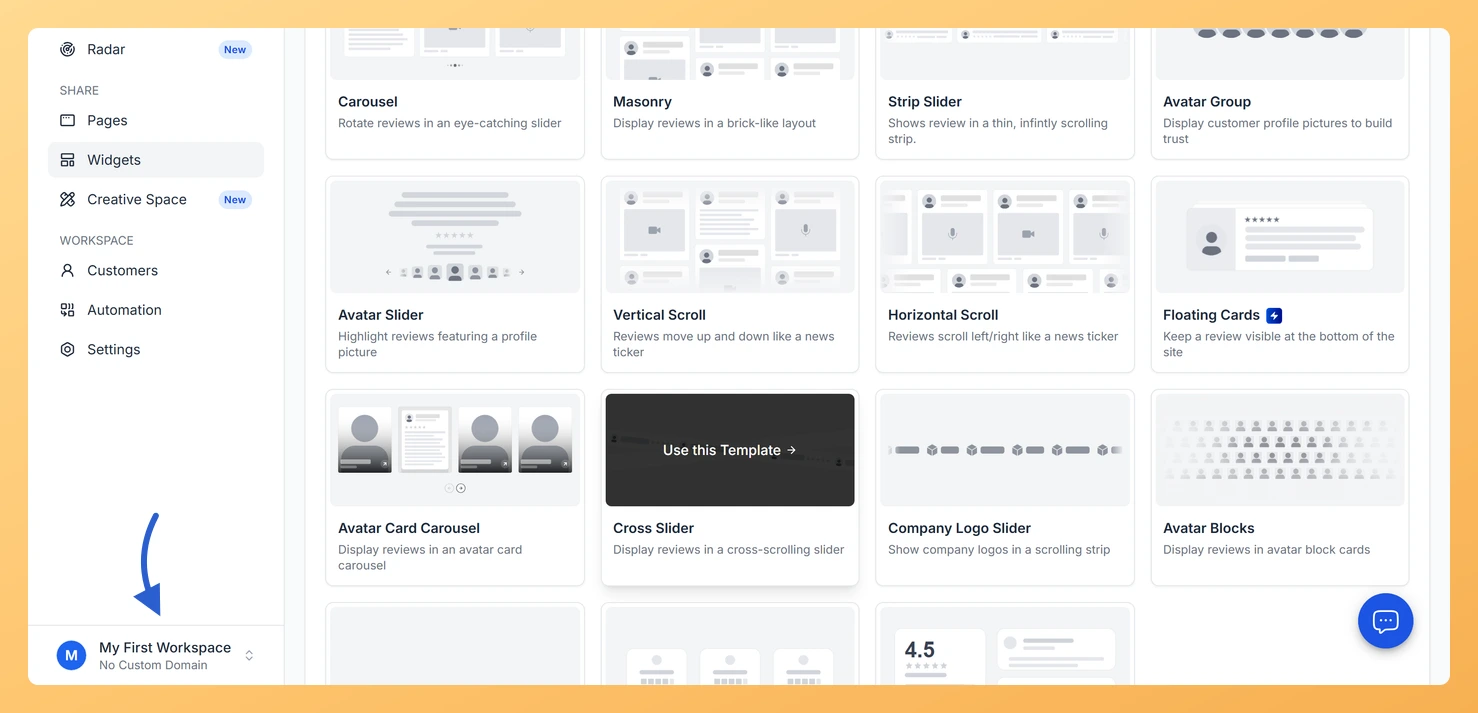
Log in to your Feedspace dashboard and check the workspace name in the workspace switcher at the bottom of the left sidebar. If it is not the brand you want, click it and select the right workspace. Branding is set per workspace, so this has to be correct before you upload anything.
Step 2: Open Branding
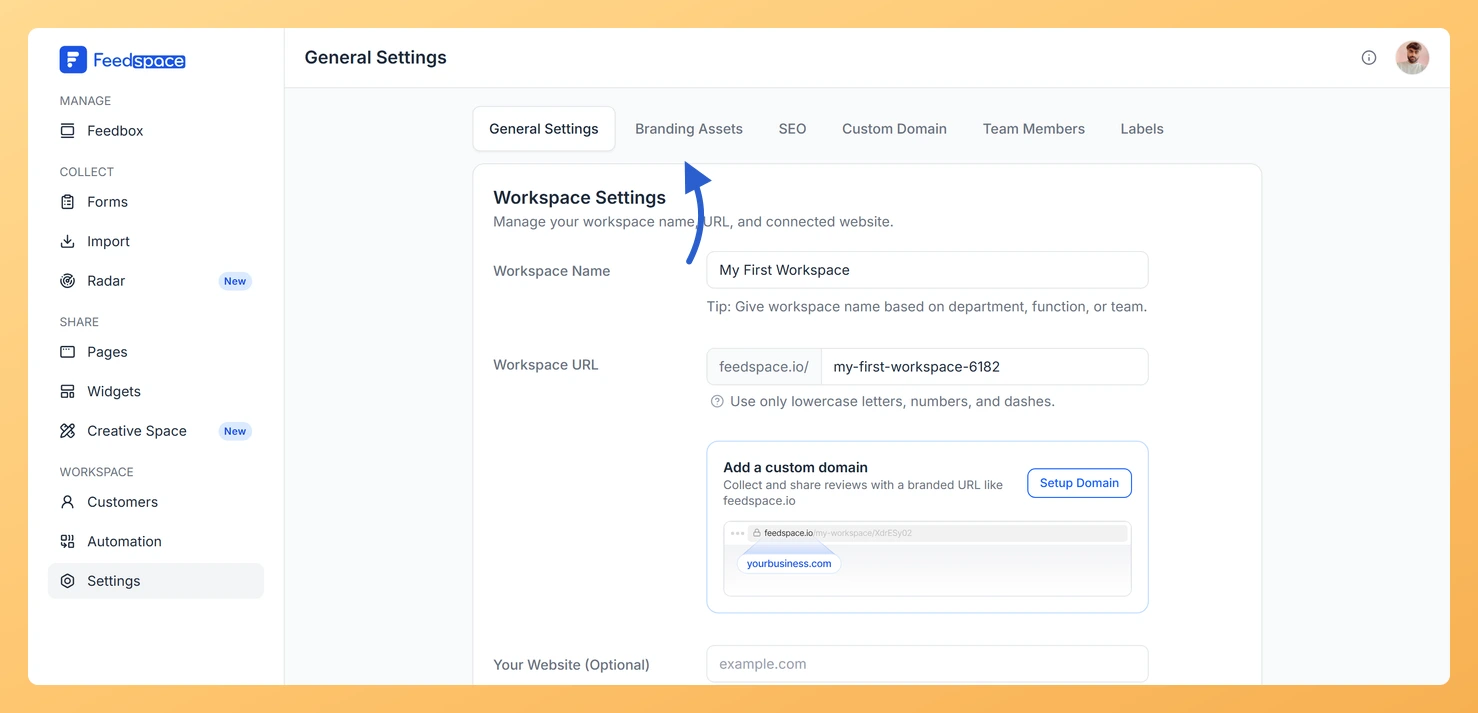
Click Settings in the left sidebar, under the Workspace section. The Settings page opens on General Settings, so click the Branding Assets tab in the row of tabs across the top. The page loads with the current logo, favicon, colors, and font for this workspace.
Step 3: Upload the logo and save
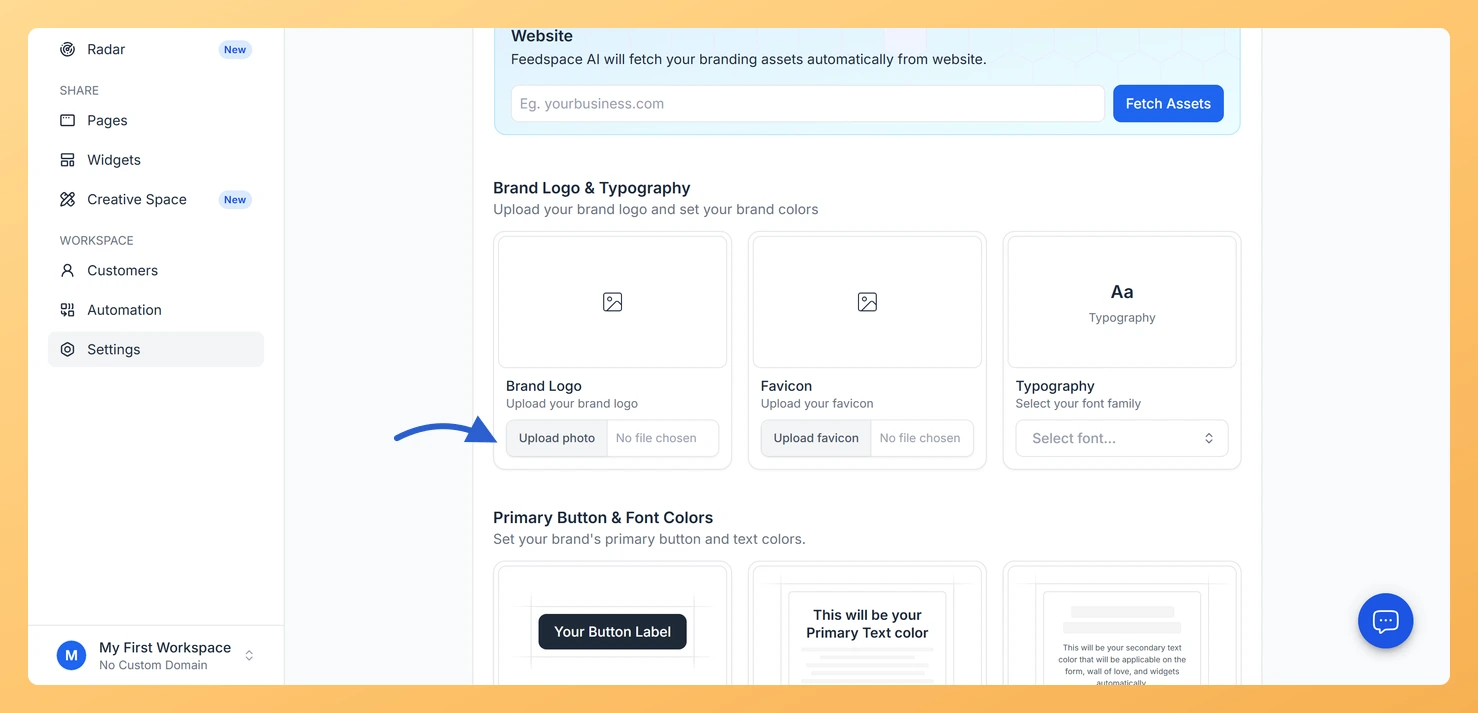
In the Brand Logo card, click Upload photo and pick your image. The preview updates and the file name appears next to the button. Feedspace accepts image files such as JPG and PNG. Once the logo looks right, click Save Changes in the bar at the bottom of the page so the new logo becomes the saved value for this workspace.
Step 4: Hard-refresh and clear your cache
After saving, do a hard refresh to load the latest version. On Windows press Ctrl + Shift + R. On Mac press Cmd + Shift + R. Your live review forms, Wall of Love, and widgets may also be cached, so clear your browser cache or open one of those pages in a private window to confirm the new logo is showing.
If the logo is on the wrong workspace
If you uploaded the logo to the wrong brand, switch to that workspace, open Settings, then the Branding Assets tab, remove the logo with the delete icon on the Brand Logo card, and click Save Changes. Then switch to the correct workspace and upload the logo there following the steps above.
What’s next
With the logo in place, set your brand colors and favicon on the same Branding page so your forms and Wall of Love match your brand. See how to upload a logo and favicon in Feedspace for the full walkthrough.
Common questions
Does one logo apply to all my workspaces?
No. Each workspace has its own branding, so you set the logo separately in each one under Settings, then Branding Assets. Uploading a logo in one workspace does not change any other workspace.
My branding changes are not showing at all. What should I check?
The logo still does not show after all of this. What now?
Email support@feedspace.io with the workspace name and a screenshot of your Branding page and the page where the logo is missing, and the team will look into it.
You might also find helpful
How Do I Upload a Logo and Favicon in Feedspace?
Overview Uploading a brand logo and favicon in Feedspace adds your visual identity to all review forms, wall of love pages, and widgets in your workspace. The logo appears prominently on your forms and pages, while the favicon shows in the browser tab when visitors view your pages. Before you...
How Do I Switch Between Workspaces in Feedspace?
Overview If you have more than one workspace in Feedspace, you can switch between them at any time using the workspace switcher in the left sidebar. Each workspace is completely independent, with its own review forms, customers, team members, branding, and settings. How to switch workspaces The page reloads into...
How to Manage Branding Assets in Feedspace
Overview Feedspace lets you customise the look of your Wall of Love and widgets through Branding Assets in your workspace settings. You can upload your logo, set brand colours, and choose a font so every testimonial display matches your company’s visual identity. Steps to manage branding assets Step 1: Open...