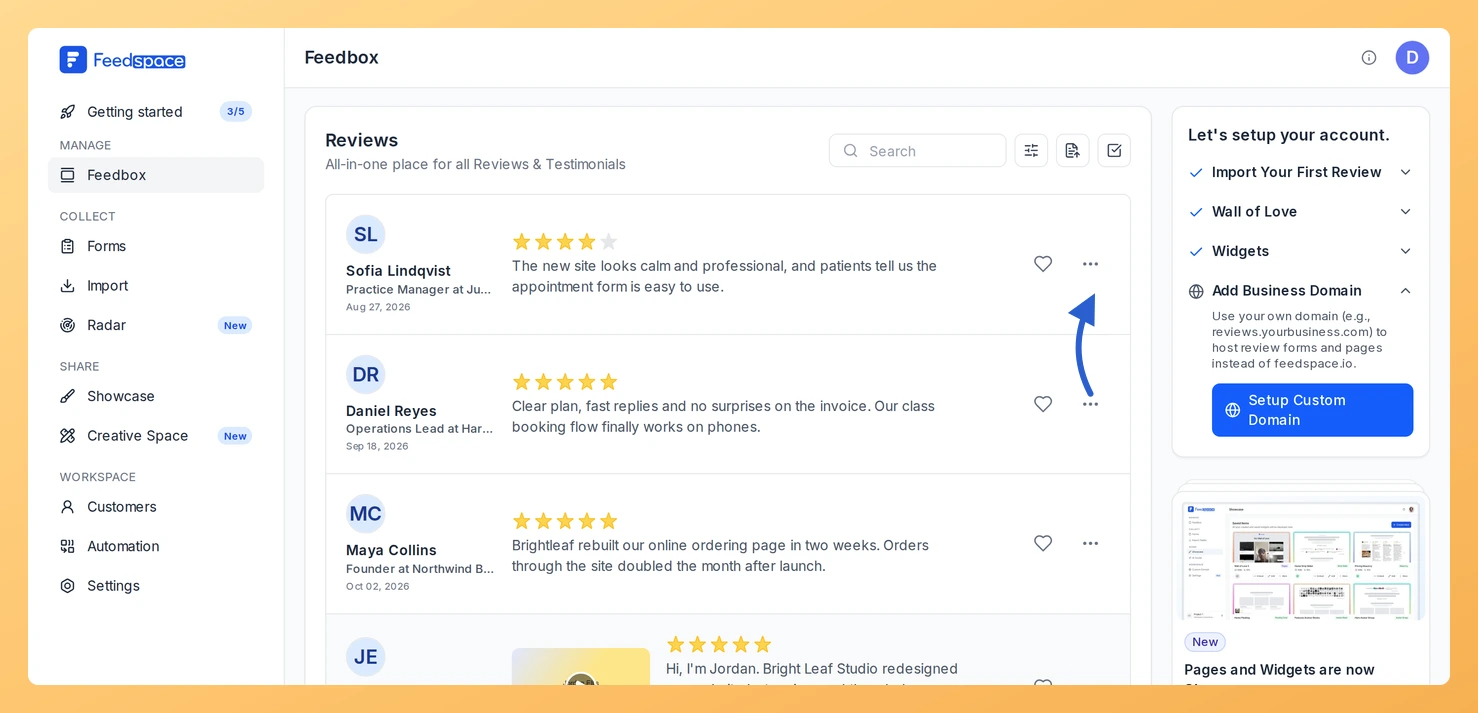
People often say who they are at the start of a video or audio review, then leave the name, job title or company fields on the form empty. Fill reviewer details in Feedspace reads the review’s transcript with AI and fills in whichever of those three details are still blank.
A review that names the person, their role and their company is far more convincing on a widget or a Wall of Love page. Instead of replaying each recording and typing the details yourself, you fill them in with one click per review.
Before you start
The review needs a transcript. That means a video or audio review, or a text or imported review with a video or audio attached. If it has none yet, generate the transcript first.
Filling reviewer details is part of the paid plans, and each answer the AI gives uses 1 AI credit.
Steps to fill in reviewer details
Step 1: Open the review’s menu
In Feedbox, find the review and click its More actions button, the three dots on the review card. With the review already open in its detail panel, use the More actions button there instead.
Step 2: Click Fill reviewer details
Choose Fill reviewer details in the menu. The menu stays open while the AI works through the transcript, then closes.
Step 3: Check the details
When the AI finds something, a message says “Reviewer details filled from the transcript” and the review shows the new name, job title or company. They appear wherever the review is shown, including your widgets and Wall of Love pages. If the recording never mentions them, the message says so and nothing changes; you can still add them on the review yourself.
Hover over it to see why. It is unavailable when the name, job title and company are all filled already, when the recording has no transcript yet (generate one first), or when the review has no video or audio at all, since written text is not read.
Will it overwrite details the reviewer or I typed?
No. Only empty fields are filled. A name, job title or company that is already on the review stays exactly as it is.
Is a credit used when nothing is found?
Yes. Each answer from the AI uses 1 AI credit, including one that finds nothing to fill. Nothing is used when the option is greyed out or when the transcript could not be read.
You might also find helpful
How Do I Get a Transcript of a Video or Audio Review in Feedspace?
Overview Feedspace can turn the speech in a video or audio review into readable text. Depending on your plan, new reviews are transcribed for you as they arrive, or you create the transcript yourself with one click. A transcript makes a spoken review easy to skim, quote on your website,...
What Reviewer Information Can I Edit in Feedspace?
Overview After a review is collected or imported, you can update the reviewer information directly from the Reviewer Profile panel that opens with each review in Feedbox. This is useful when reviewer details are incomplete, outdated, or need enrichment before showcasing the review. What you can edit The Reviewer Profile...
How to View Full Details of a Review in Feedspace
Overview Each review card in Feedbox shows a short preview of the review text. If you want to see the full review along with all reviewer details, platform information, and metadata, click the review card to open the complete review in one place. Steps Tips