Feedspace review forms do not support pre-filling reviewer fields (such as name or email) using URL parameters. When a reviewer opens your form, all fields are blank and they fill them in manually.
If you want to send personalised review requests to a known list of customers without asking them to fill in their own details, the built-in Customers module is the supported approach. It lets you build a contact list and send review invitations directly from Feedspace.
How to send personalised review requests using the Customers module
Step 1: Open Customers
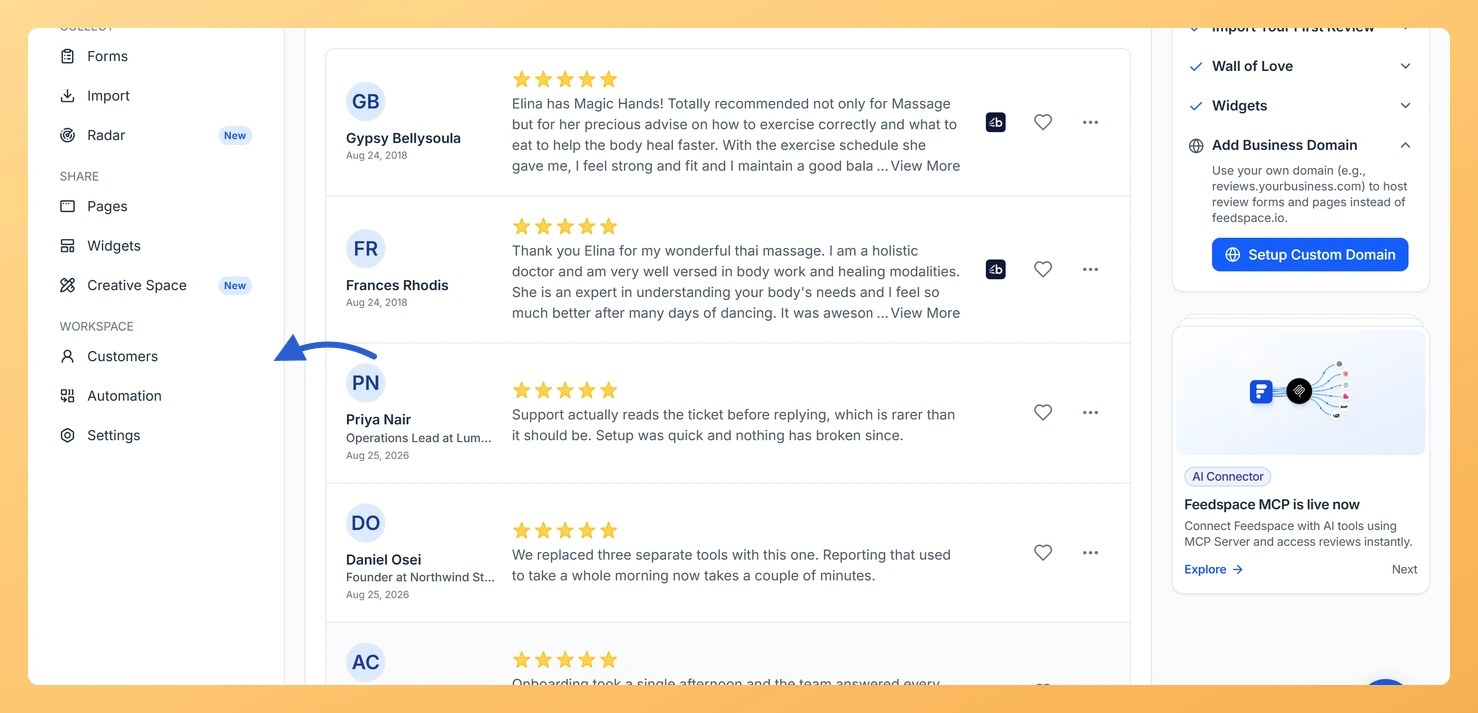
Sign in at app.feedspace.io/signin and click Customers in the left sidebar, under Workspace.
Step 2: Add your contacts
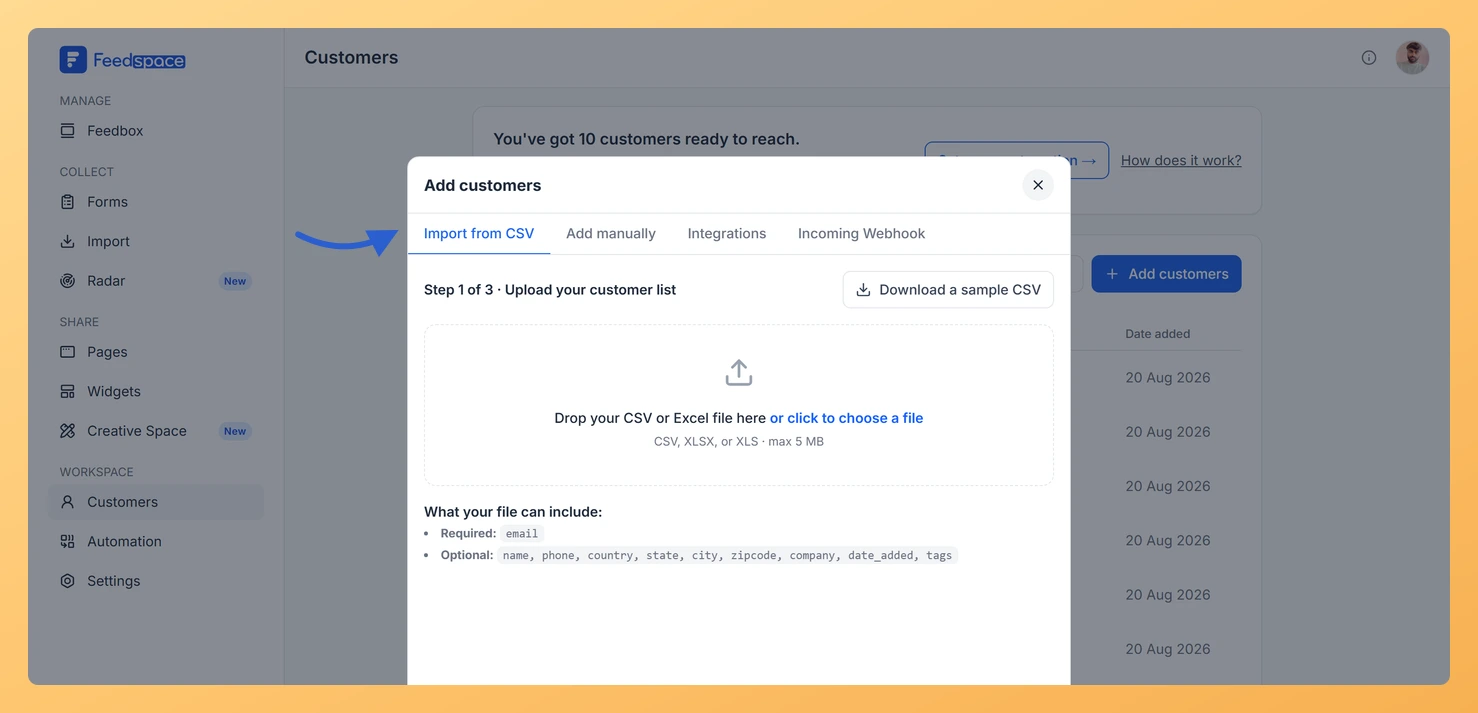
Click Add customers at the top right. The window that opens has four tabs: Import from CSV for a list exported from another tool, Add manually for one person at a time, Integrations to sync from Stripe, and Incoming Webhook so your own system can push contacts in.
What’s next
Once your contacts are in the Customers module, you can send review requests at any time without sharing a generic form link. The invitation goes to their email directly, so they do not need to find or remember your form URL. You can also set up form-level email automation in the Automation tab of your form editor to send follow-up emails automatically after a reviewer submits.
Common questions
Can I import my existing customer list into the Customers module?
Yes. The Customers module supports CSV import so you can bring in a list of contacts at once. You can also add contacts individually, connect an incoming webhook to populate contacts from an external tool, or link Stripe to add customers automatically when they complete a purchase.
Can I send review requests to specific customers for a specific form?
Contact support@feedspace.io for details about sending targeted review requests for a specific form from the Customers module.
Can I shorten or customise my form URL before sharing it?
Yes. You can set a custom URL slug for your review form from the Share tab in the form editor. A shorter, branded URL is easier to share and remember. See the custom URL slug article for the steps.
You might also find helpful
How Do I Share My Feedspace Review Form with Customers?
A Feedspace review form is only effective when customers actually see it. This guide covers every way to get your form in front of customers, from a simple direct link to automated sequences and website embeds, so you can choose the method that fits your workflow. What you can do...
How to Set a Custom URL Slug for Your Review Form
Overview Feedspace lets you replace the default form URL with a memorable, branded slug: making your form link easier to share and recognize. For example, you can change a long random URL into something like yourworkspace.feedspace.io/your-brand-name. Step 1: Open the Share Tab Step 2: Find the Form Link Step 3:...
How Do I Choose Which Fields to Collect on My Feedspace Review Form?
The User Details step of your Feedspace review form collects additional information about the reviewer alongside their testimonial. You control exactly which fields appear by toggling each one on or off in the User Details tab. You can also mark any field as required so reviewers cannot skip it. What...