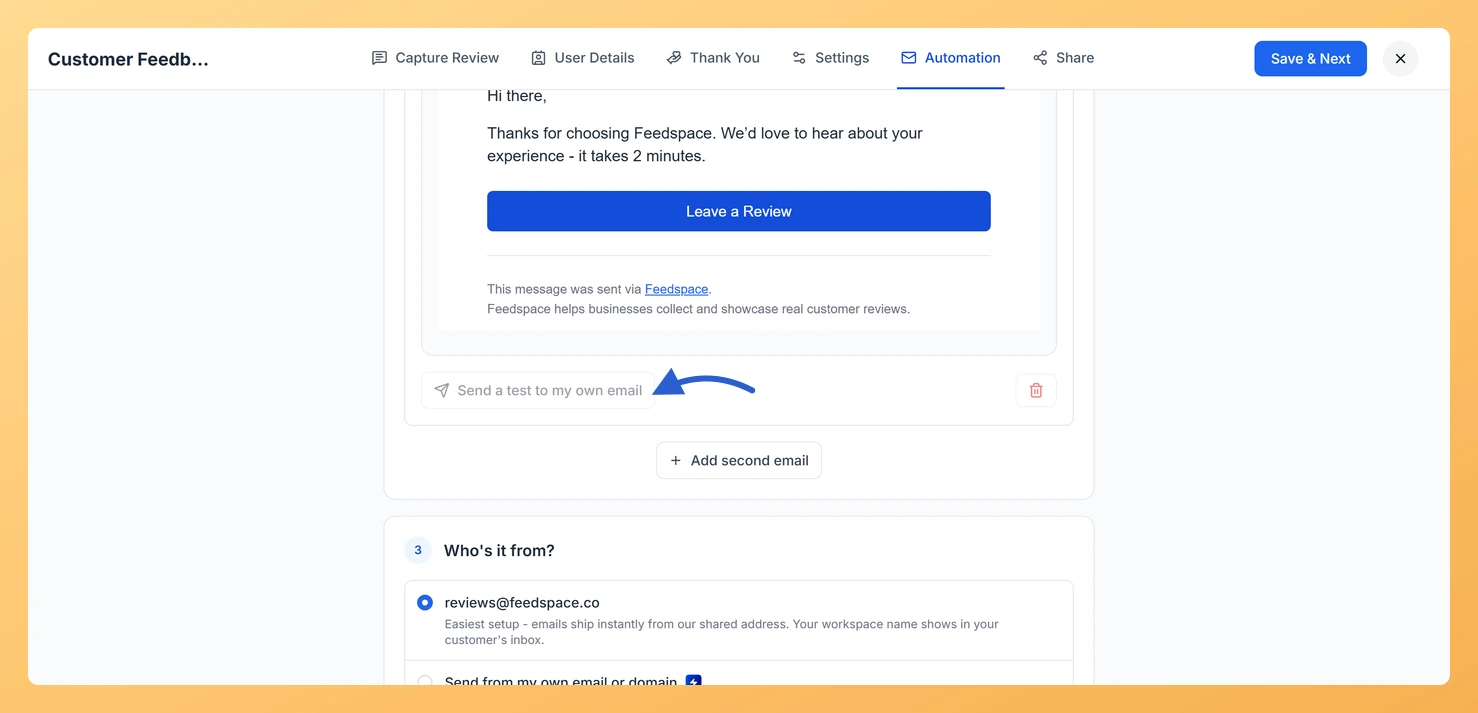
Feedspace email automation uses a rich text editor for the email body. You format text using toolbar buttons (bold, italic, underline, links, and lists) rather than by typing HTML tags directly. The editor outputs HTML automatically, so the emails your reviewers receive are properly formatted without you writing any code.
This is useful when you want to send a follow-up email after a reviewer submits, thank them, or ask for a second action, and you want the email to look clean and branded.
Click the Edit (pencil) icon on your form card to open the form editor.
Click the Automation tab in the editor header. The automation editor opens showing your email sequence cards.
Click Edit content on the email card you want to edit. The card expands in place to reveal the subject line input, the body editor, and preview options.
Edit the Subject field at the top of the card.
Edit the body text using the rich text toolbar. The available formatting options are: Bold, Italic, Underline, Link, Bullet list, Ordered list, and Horizontal rule.
To add a personalised placeholder, click the variable picker in the toolbar and choose one: {{name}} (reviewer’s name), {{workspace_name}} (your workspace name), or {{form_link}} (your form link). The placeholder is added where your cursor is and automatically replaced with the real value when the email sends.
Click Save Draft in the sticky footer to save your changes.
The CTA button
Each email in your sequence has a call-to-action button that is added automatically after the body text when the email is sent. You configure the button label and colour separately from the body editor. The button always links to your review form, you do not need to add a link manually in the body. The default button label is Leave a Review.
What’s next
After saving your email draft, click Activate in the footer to start sending. Once active, the automation sends emails to your customers automatically when they are added to your Customers list. You can also set up a custom sender address so the emails come from your own domain rather than from Feedspace.
Common questions
Can I include a link to my review form in the email body?
Yes. Use the {{form_link}} variable from the variable picker to insert your form URL into the body as a token, or use the Link formatting button to hyperlink any text to any URL. The CTA button at the bottom of the email also links to your form automatically, so most emails do not need a separate body link.
How many emails can I add to a sequence?
Free plan workspaces can add one email per automation sequence. Professional and Business plan workspaces can add up to three emails per sequence. Click Add another email below the last email card to add a follow-up to your sequence.
Can I use my own email address as the sender?
Yes. Feedspace supports a custom email sender feature. See the custom email sender article for the setup steps.
You might also find helpful
How Do I Set Up Email Sequences on My Feedspace Review Form?
An email sequence is a series of timed messages sent automatically after a customer is added to your automation list. Each email has its own delay, subject, body, and call-to-action button. Once configured and activated, the sequence runs without any manual input, turning your customer list into a steady stream...
How Do I Edit an Email in My Feedspace Automation Sequence?
Each email in your Feedspace automation sequence has its own subject line, body, and call-to-action button that you can edit independently. Clicking Edit on an email card opens a slide-over panel where you write your message, insert personalisation variables, and customise the review button before saving. What You Can Do...
How Do I Use a Custom Email Sender for My Form Automation in Feedspace?
Overview Out of the box, your automation emails go out from reviews@feedspace.co with your workspace name in the inbox. On a paid plan you can switch to Send from my own email or domain, and the emails arrive from your address instead, through either your own SMTP server or your...