While the Feedspace badge is showing on your form, you can point it at your own referral link instead of the plain Feedspace address. Anyone who clicks it and signs up is counted as your referral. The setting lives on the Settings tab of the form editor, right under the branding switch.
It suits anyone whose form gets seen a lot: an agency sending the same link to every client, or a coach whose form sits on a landing page. The badge was going to be there either way, so it may as well earn you something.
Steps to add an affiliate link
Step 1: Get your affiliate link
Join the Feedspace affiliate programme if you have not already. Your link comes back looking like https://www.feedspace.io/?via=yourusername.
Step 2: Open the form editor
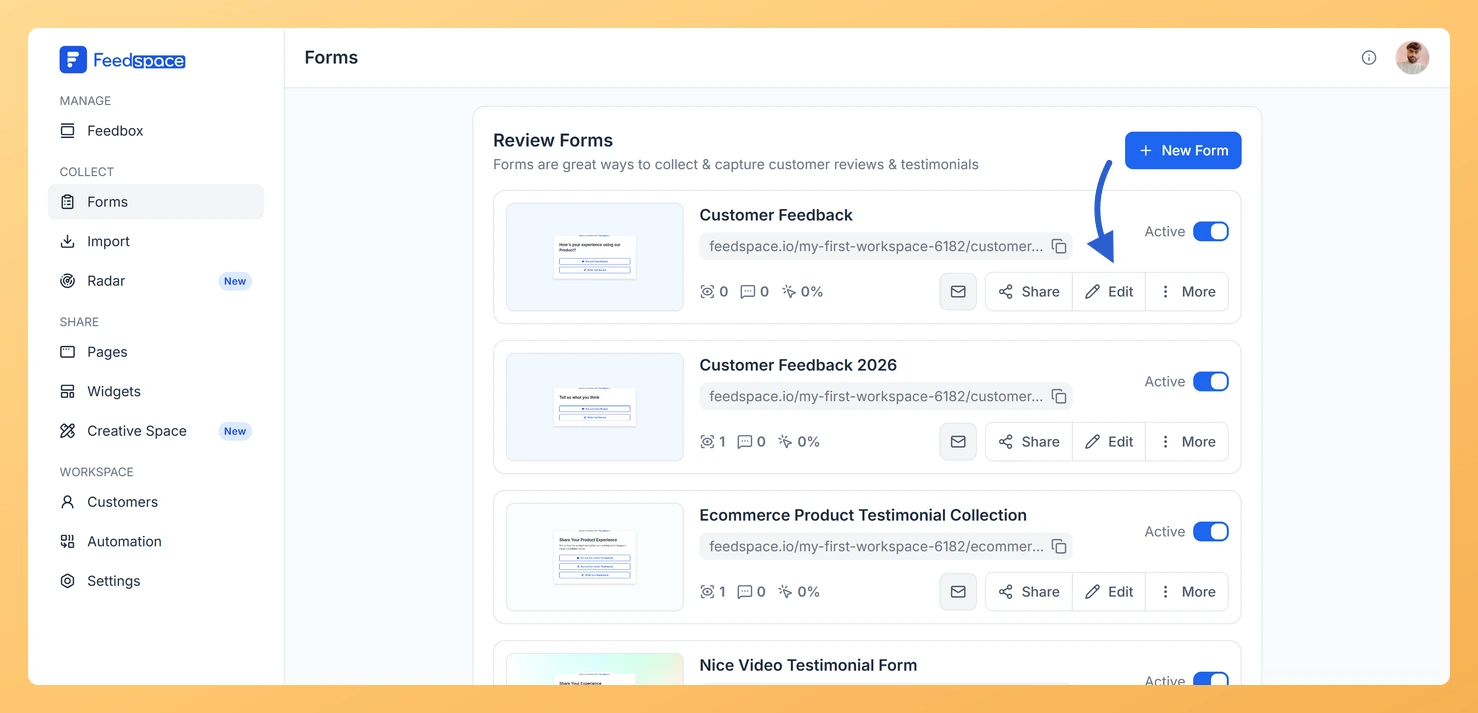
Click Forms in the left sidebar, find the form you want, and click Edit on its card. The editor opens on the Capture Review tab.
Step 3: Go to the Settings tab
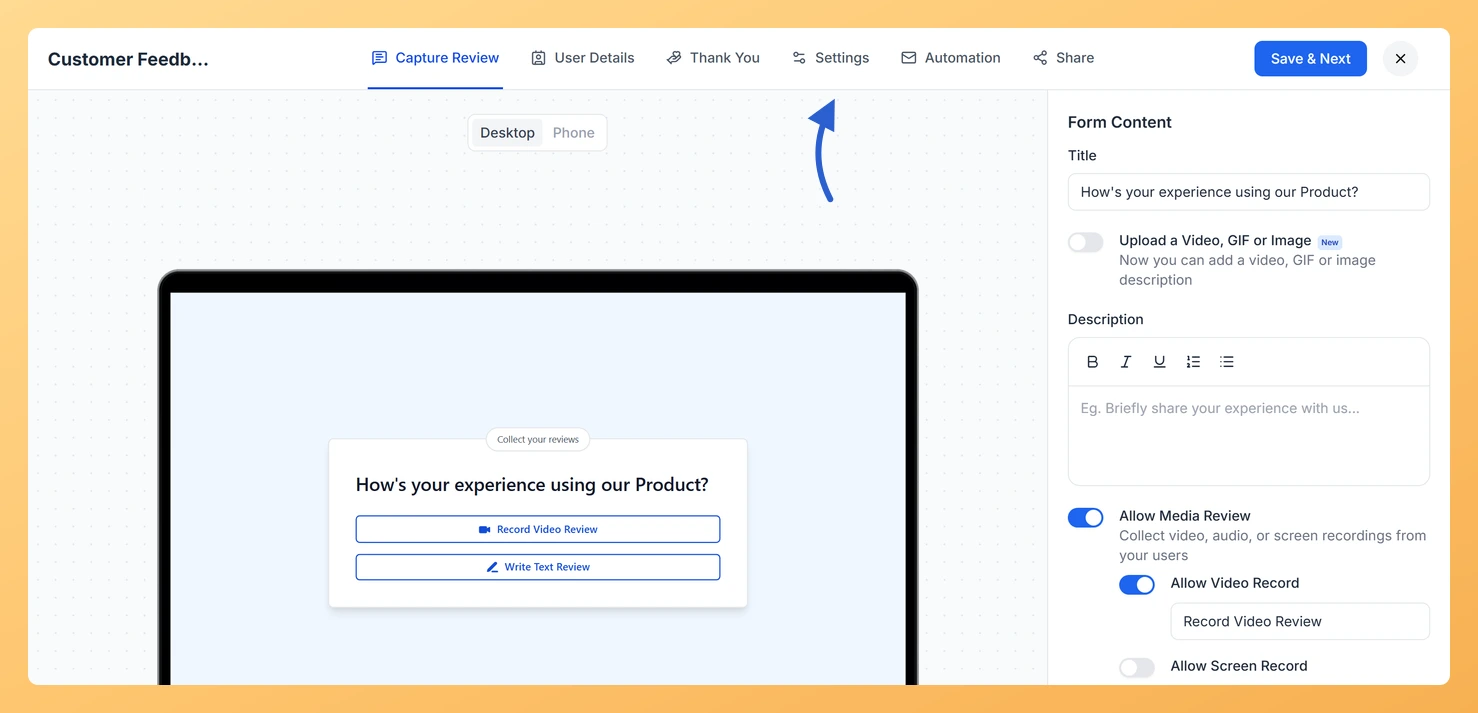
Click Settings in the row of tabs along the top. Branding is the first section in the panel on the right.
Step 4: Turn on Enable Affiliate Link
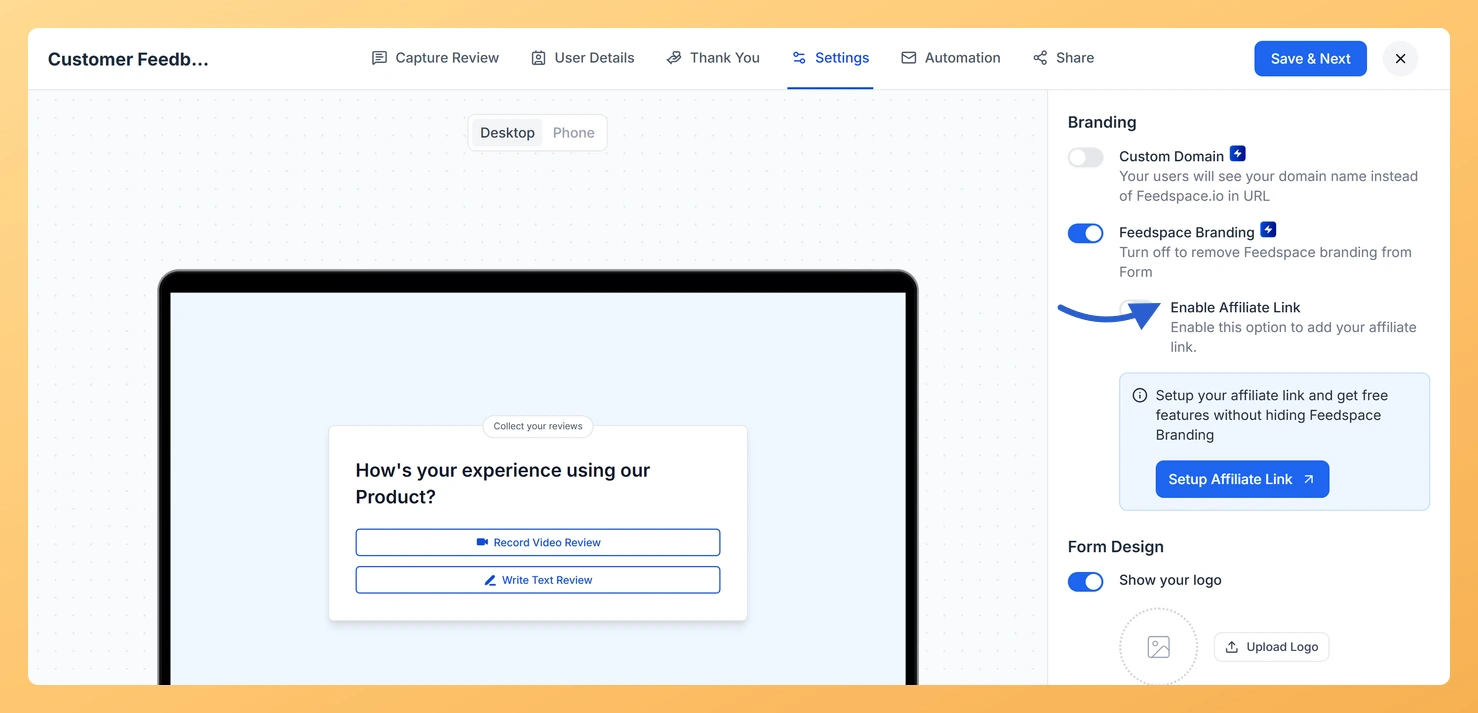
Leave Feedspace Branding switched on, since the affiliate link rides on that badge, then switch on Enable Affiliate Link. A box for the address appears underneath.
Step 5: Paste the link and save
Put your referral link in the box and click Save & Next in the header. The badge on your form now carries your link. The box will not accept an address outside feedspace.io, and it cannot be left empty while the switch is on.
What’s next
Share the form as usual and every visitor who clicks the badge and signs up counts as your referral. To change or drop the link later, come back to Settings, edit the box or switch Enable Affiliate Link off, and save again.
Common questions
Can I keep the affiliate link and hide the Feedspace badge?
No, because the link is attached to the badge itself. Switch Feedspace Branding off and the affiliate box goes with it, since there is no longer a badge for a visitor to click.
Why will it not accept my link?
The box only takes a feedspace.io address, which is what an affiliate link is. Anything else is refused when you save, and the field shakes to show you where the problem is. Check for a typo in the domain, and that you pasted the referral link rather than your dashboard address.
You might also find helpful
How Do I Remove Feedspace Branding from My Review Form?
Overview You can remove the Feedspace branding badge from your review form by toggling off Feedspace Branding in the form’s Settings tab. If the badge is still showing after you turned it off, one of the checks below will resolve it. Steps to remove Feedspace branding If the branding badge...
How Do I Add a Logo to My Feedspace Review Form?
Adding your brand logo to a Feedspace review form instantly makes the form feel like part of your product. Reviewers see your logo at the top of the form, which builds trust and reassures them they are in the right place. The logo is uploaded and managed inside the form’s...
How to Customize the Background of Your Review Form
Overview Feedspace allows you to personalize the background of your Review Forms to match your brand identity. You can choose from a solid color, gradient, or custom background image, and further enhance the look with shadow and border effects. Step 1: Open Review Form Settings Step 2: Enable Custom Background...