Your form automation emails the people on your Customers list. Connecting a customer source fills that list for you: Feedspace pulls customers in from a tool you already use and keeps pulling as new ones arrive, so nobody has to remember to upload a spreadsheet.
If you take payments through Stripe, this is the whole job. Connect it once, and every customer who pays you lands on the list your review request sequence works from.
Steps to connect a customer source
Step 1: Open the Integrations tab
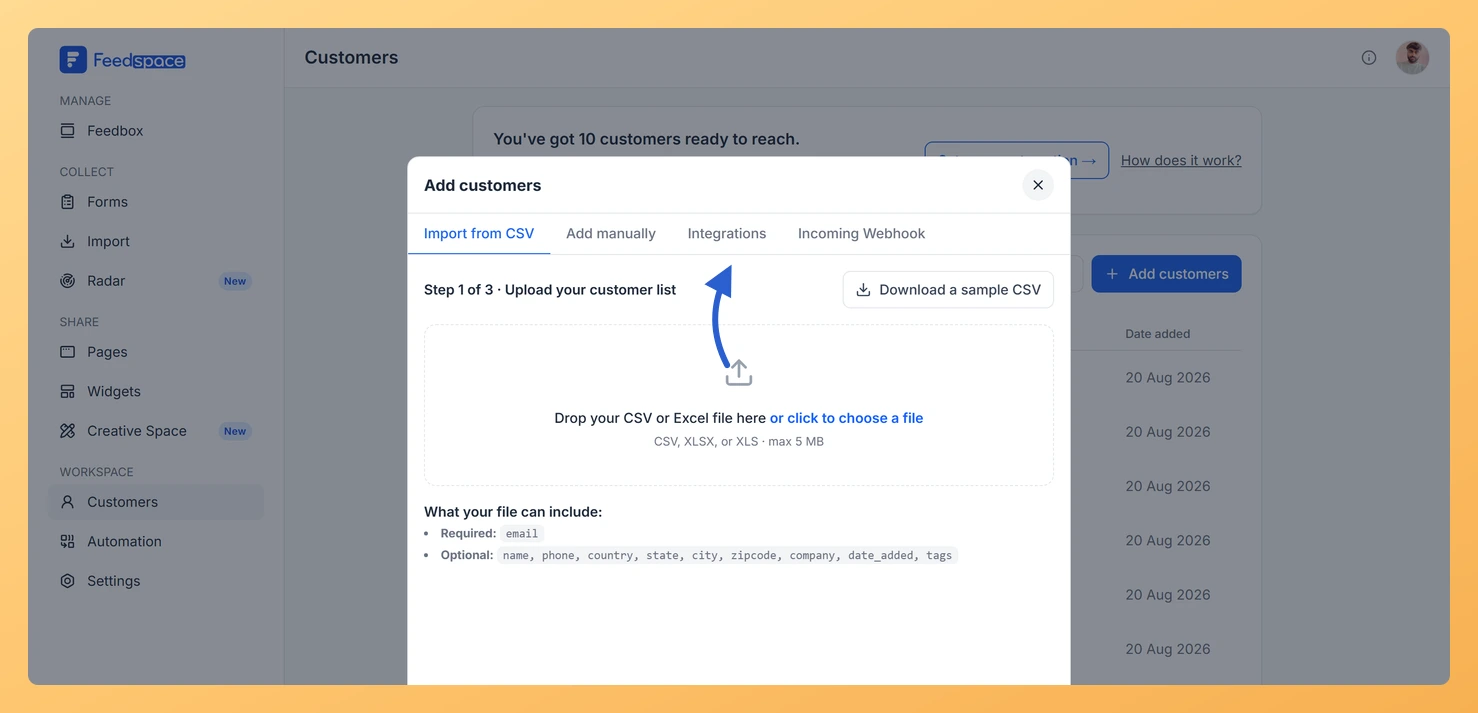
Click Customers in the left sidebar, then Add customers at the top right of the list. In the window that opens, click Integrations.
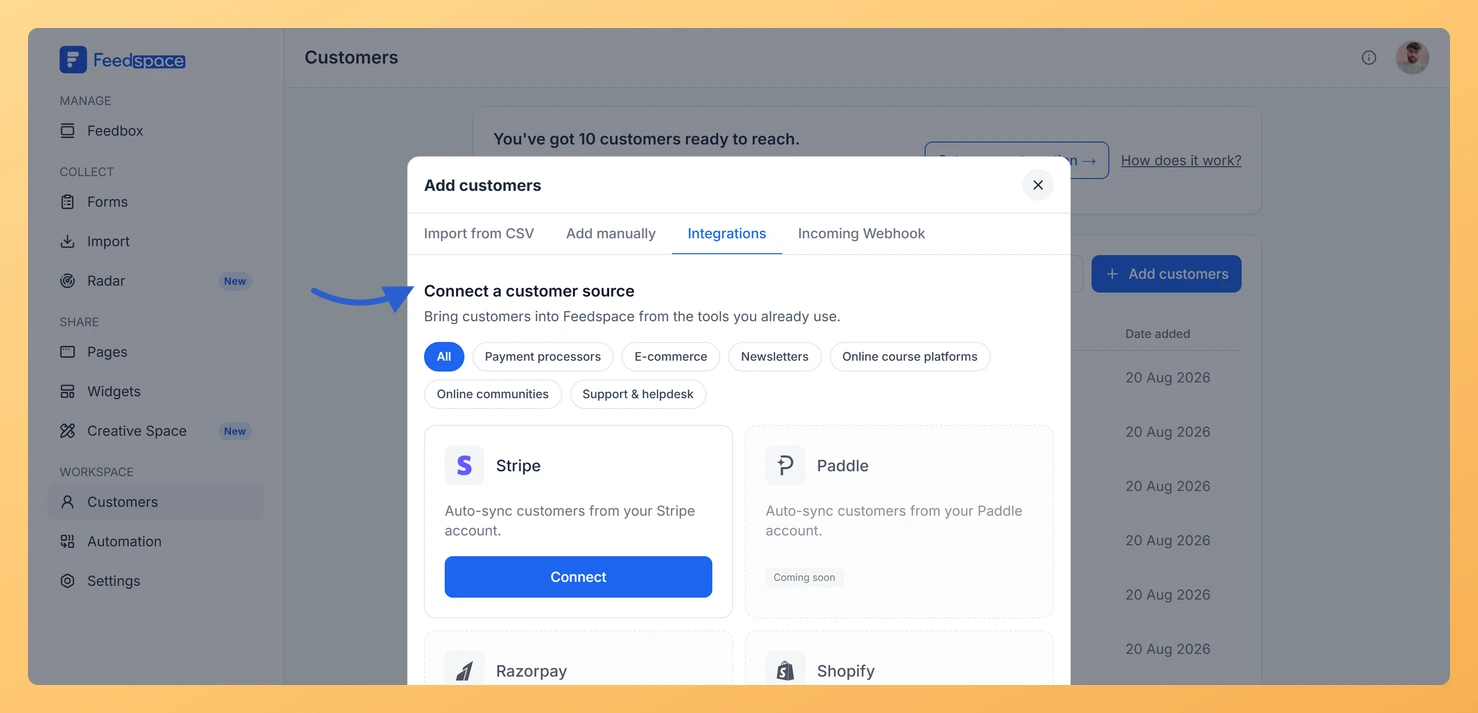
Step 2: Find the source you want
Under Connect a customer source you get a grid of provider cards, with filter pills above them: All, Payment processors, E-commerce, Newsletters, Online course platforms, Online communities, and Support & helpdesk. Stripe is the one you can connect today. The other cards carry a Coming soon badge, and which ones are live is set by Feedspace, so the grid can change without you doing anything.
Step 3: Connect Stripe
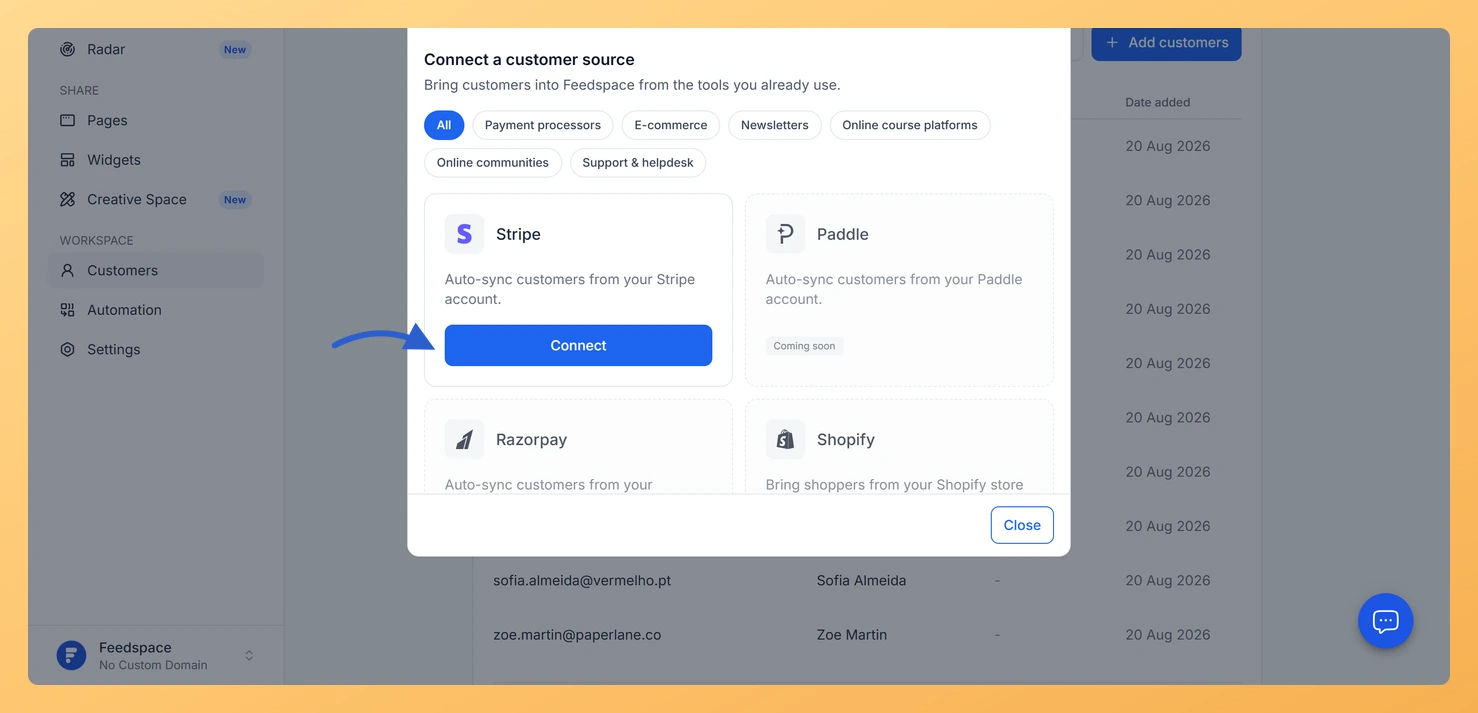
Click Connect on the Stripe card. Feedspace opens Stripe’s authorisation page in a new browser tab while your dashboard stays where it is. Approve the connection there and you come back automatically. The card updates itself, so there is nothing to refresh.
Step 4: Wait for the first import
The card shows an Importing badge while your existing Stripe customers come across, then settles on Connected. Your customer list refreshes on its own once the import lands, and from then on new Stripe customers arrive by themselves.
Turning a source off
Everything about a connection lives on its card. To stop a source, click the disconnect icon on it; the buttons on the card are replaced by a short confirmation telling you that new customers will stop syncing and the ones already imported will stay. Click Yes, disconnect to finish, or Cancel to leave it running.
They stay. Disconnecting only stops new customers arriving from that source. Everyone already imported remains on your list and any automation running against them carries on.
The Stripe card says Error. What does that mean?
The connection has stopped syncing, usually because the authorisation was withdrawn on the Stripe side. The card offers Reconnect, which takes you back through the same approval and picks the sync up again.
You might also find helpful
How Do I Add Customers to My Feedspace Form Automation?
Your automation only sends emails to customers you have explicitly added. Feedspace gives you four ways to build your recipient list: manually one by one, via a CSV upload, via an incoming webhook, or through a platform integration. Once a customer is added, they are enrolled in your sequence and...
How Do I Send Customers to My Feedspace Form Automation via Webhook?
The incoming webhook lets any external tool enroll customers in your Feedspace form automation by sending a simple HTTP POST request. When a new customer signs up, makes a purchase, or completes any trigger event in your other tools, those tools can POST the customer’s name and email directly to...
How Do I Add Customers Manually to My Feedspace Form Automation?
Adding customers manually lets you enroll individual contacts into your Feedspace form automation one at a time. It is the right choice for targeted follow-ups after a sales call, a product demo, or any interaction where you know exactly who you want to ask for a review. No file preparation...