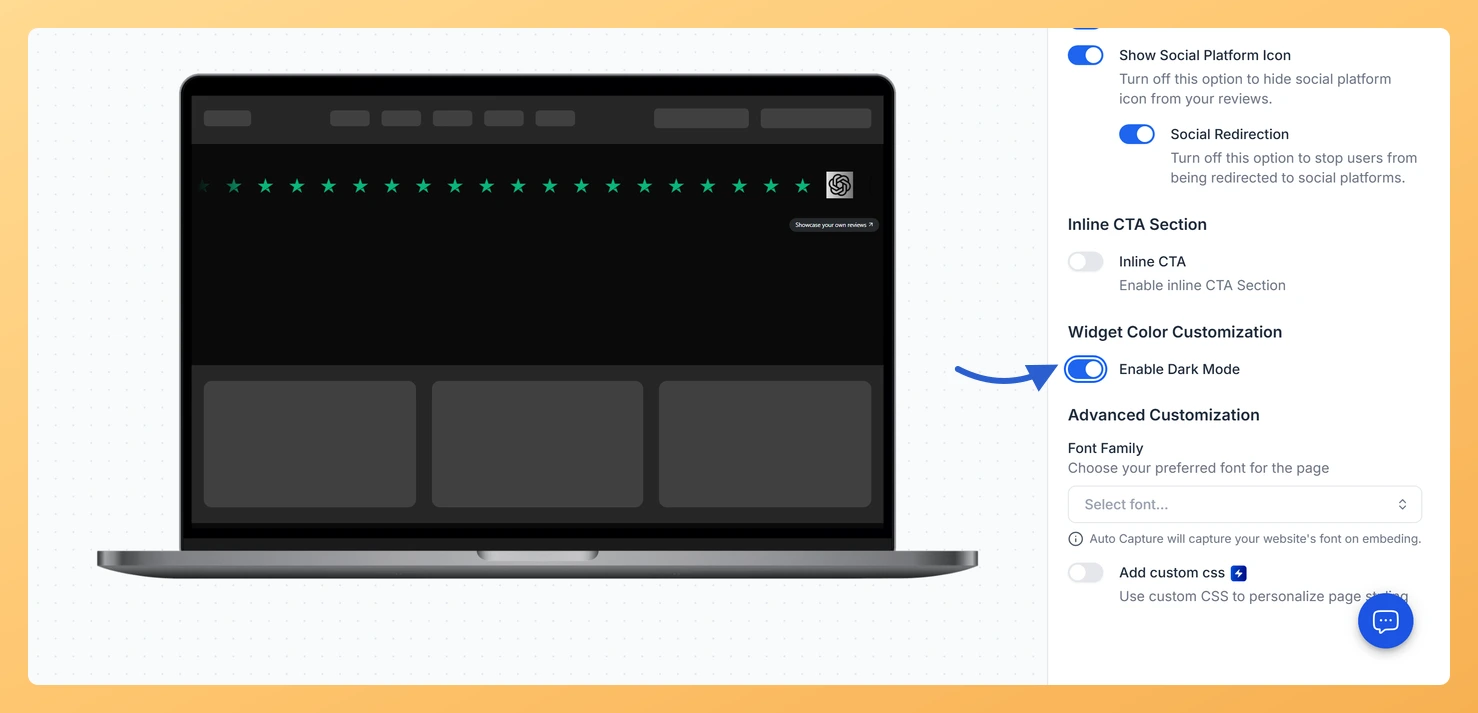
The Enable Dark Mode toggle switches your Company Logo Slider widget in Feedspace to a ready-made dark color scheme, so you don’t have to set each color yourself.
Use it when the logo strip sits on a dark part of your site, such as a black hero area or a dark footer, where a light widget would stand out as a bright band.
Steps to turn on dark mode
Step 1: Choose Widgets
Click Widgets in your dashboard sidebar.
Step 2: Open the slider’s Design settings
Click the Edit (pencil) icon on your Company Logo Slider, then the Design tab.
Step 3: Turn on Enable Dark Mode
Scroll to Widget Color Customization and turn on Enable Dark Mode, the first toggle in that section. The preview switches to dark.
Where did the border, shadow and color settings go?
Dark mode hides them. While it is on, Show Review Card Border, Show Review Card Shadow and the Custom Colors pickers are removed, because dark mode provides those colors. Turn it off to see them again.
Will dark mode recolor the logos?
No. Logos keep their own colors. For uniform gray logos, turn on Enable Gray mode in Layout Design.
You might also find helpful
How Do I Change the Card Background Color on My Company Logo Slider Widget in Feedspace?
Overview When a visitor clicks a logo in your Company Logo Slider widget, Feedspace opens a small card with that customer’s review. The Review Card Background Color picker sets the fill color of that card. Because the card opens on top of your page, its color decides whether it looks...
How to Create a Company Logo Slider Widget in Feedspace
Overview Feedspace’s Company Logo Slider widget displays your clients’ or partners’ logos in a smooth, continuously scrolling strip. It’s the ideal “as seen on” or “trusted by” social proof bar for your homepage or landing page: no review text needed, just recognizable brand logos. Step 1: Log in to Feedspace...
How Do I Customize the Design of My Widget in Feedspace?
Overview Every Feedspace widget has a Design tab where you decide how it looks on your site: colors, font, card borders and shadows, what each review card shows, and an optional call-to-action card. Each change appears in the live preview as you make it. A common case: you embed a...