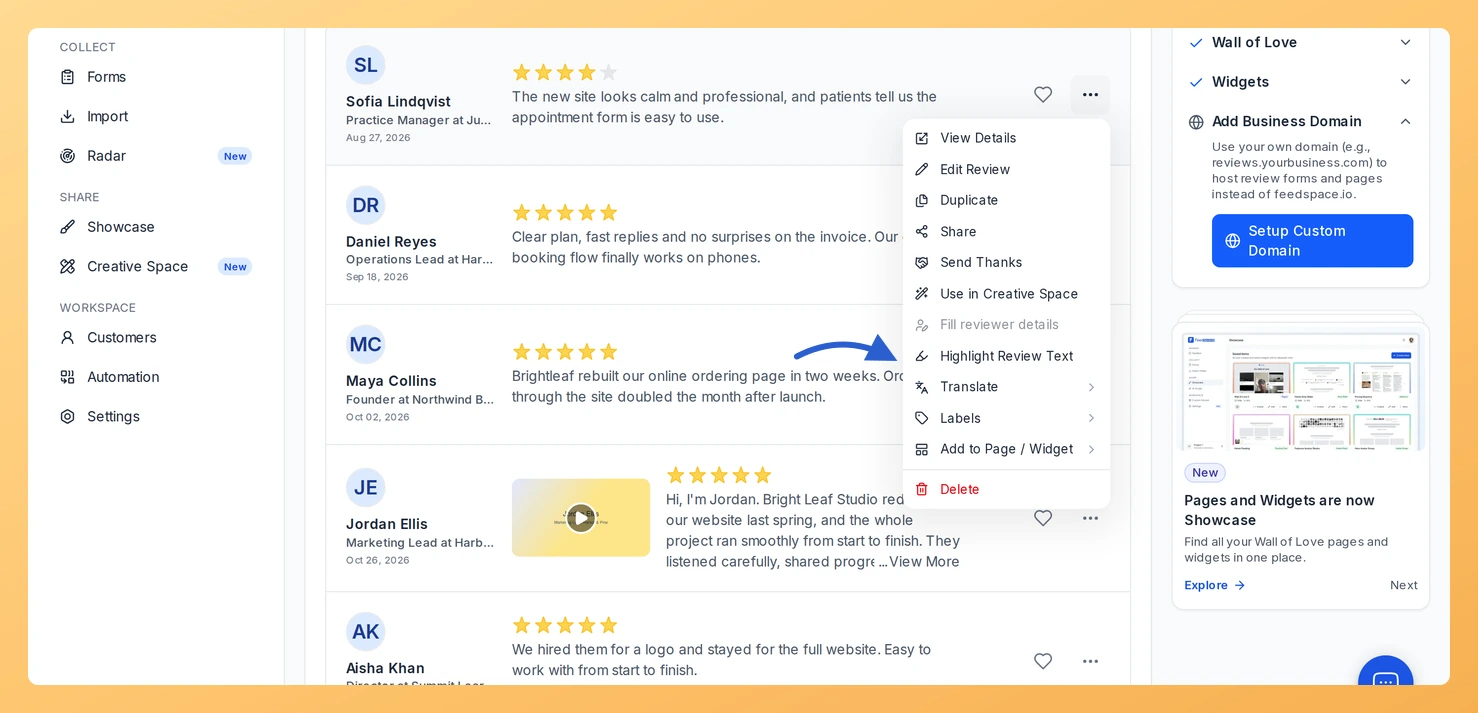
Highlight Review Text in Feedspace asks AI to find the sentence that carries a review and marks it, the same way a highlight you add yourself in Edit Review does. The reviewer’s words are left exactly as they wrote them.
A visitor skimming a widget reads the marked line first, so a long review still lands its point. It is handy after an import, when dozens of new reviews arrive and picking the best line in each by hand would take an afternoon.
Before you start
The review needs written text. For a video or audio review, that is the text written with it: the transcript is never highlighted.
Highlight Review Text is part of the paid plans. Each highlight that is saved uses 1 AI credit; nothing is used when the AI finds nothing new to mark.
Steps to highlight a review
Step 1: Open the menu on the review
Go to Feedbox and click More actions, the three dots on the review’s card. If the review is open in its detail panel, the panel has its own More actions button that works the same way.
Step 2: Choose Highlight Review Text
Click Highlight Review Text. The menu stays open, with the item showing that it is working, while the AI reads the review.
Step 3: Check the result
A message says “Review text highlighted”, and the marked sentence now stands out wherever the review shows: in Feedbox, on your widgets and on your Wall of Love pages. If the AI has nothing new to mark, the message reads “There is no new text to highlight in this review” and the review stays as it was.
What’s next
Pick the colour of the marked line on a Wall of Love page with Highlighted Text Color, one of the page’s colour settings.
Let a Wall of Love page pick up highlighted reviews on its own with Show Highlighted Text Reviews in automated review selection.
Common questions
Can the AI change what the reviewer wrote?
No. It only adds a highlight, and any highlight the review already had is kept. If the answer would change a single word or drop an existing highlight, nothing is saved.
Why is Highlight Review Text greyed out?
Hover over it to see the reason. A review with no written text shows “Add review text in Edit Review to highlight it”. Some imported reviews keep their text in a form Feedspace cannot edit, and those show “The text of this imported review can’t be edited”.
How do I remove or move a highlight?
Open the review with Edit Review and use the highlight button in the review text’s toolbar to take the mark off, or to mark a different line yourself.
You might also find helpful
How to Edit a Review in Feedspace
Overview Feedspace lets you edit the details of imported or collected reviews. This is helpful when you want to update reviewer info, correct details, or add missing fields like company name, designation, or email before you showcase the review. Step 1: Go to Feedbox Step 2: Open review options Step...
How Do I Fill In Reviewer Details From a Recording in Feedspace?
Overview People often say who they are at the start of a video or audio review, then leave the name, job title or company fields on the form empty. Fill reviewer details in Feedspace reads the review’s transcript with AI and fills in whichever of those three details are still...
What Are AI Credits in Feedspace?
Overview AI credits are what the AI features in Feedspace run on. Each time you use one, such as a Radar scan or an AI image, it takes a set number of credits from your balance. There is one balance for each account owner, and every workspace you own shares...